New harmon.ie
 Save Emails and Attachments to SharePoint, Teams, or OneDrive
This topic covers step-by-step instructions for saving Outlook emails and attachments to Microsoft 365 using New harmon.ie. Want to see how harmon.ie handles email management end-to-end? See Email Management Software for Outlook & Microsoft 365.
In this guide, you’ll learn:
Save emails and attachments to Microsoft 365
With New harmon.ie you can:
- Save emails.
- Save email attachments with or without the email.
- Save an Outlook folder: Save a folder, its subfolders, and all their emails in one action.
- Save & send: Save an email and its attachments when you send it.
- Automatically save emails (Beta): Set a rule once, and harmon.ie saves matching emails for you – a conversation, emails from a sender, or new emails in an Outlook folder.
Looking for a tool that saves emails to SharePoint?
How do I save an email to SharePoint, Teams, or OneDrive?
You can save an email either using drag and drop into harmon.ie or with the Save email action.
How do I save an email using drag and drop?
- In harmon.ie, locate the SharePoint, Teams, or OneDrive location in which you want to save the email.
- Drag and drop the email to the Microsoft 365 location in the Home view or to an area in the Content view. You are notified when the upload process ends.
Once uploaded, the email appears at the top of the file list. - If an email with the same name already exists in the location, you are prompted to replace the email, keep both, or skip it.
- If you or your admin have configured harmon.ie to open the property editor automatically, it opens after saving. Fill in the metadata and click Save.
How do I save an email using the “Save email” action?
- Open New harmon.ie.
- Select the email or emails you want to save.
- In harmon.ie, locate the SharePoint, Teams, or OneDrive location to which you want to save the email.
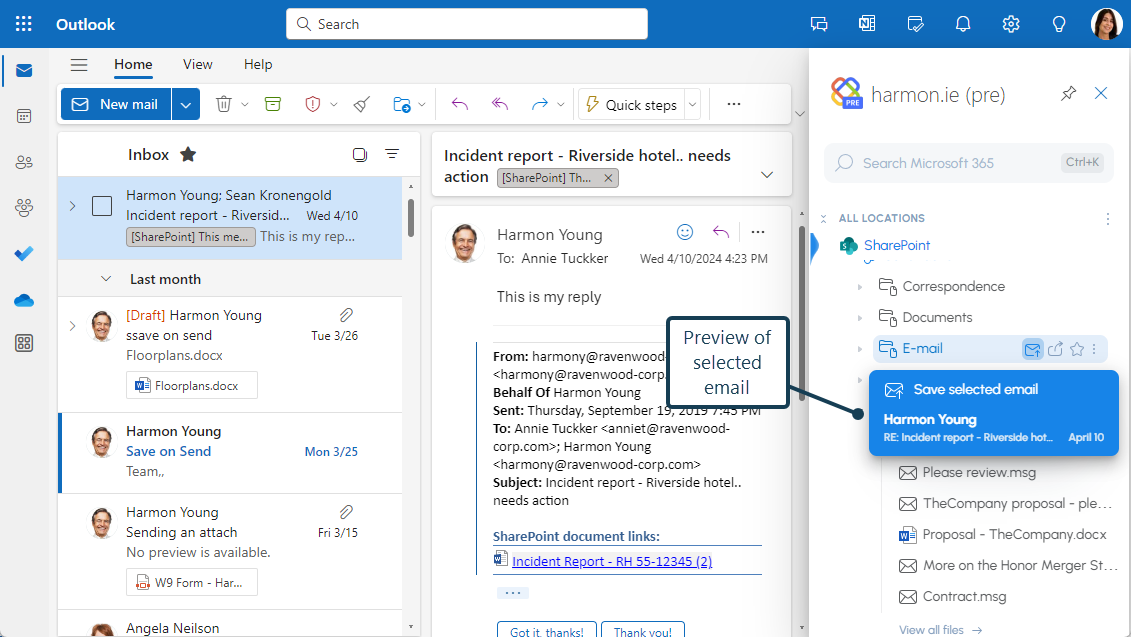
- Hover over the location name and click the Save email icon (
 ).
).
Alternatively, double-click the location name to open it in the Content view and then click the Save email icon () at the top. - If the email contains attachments, a dialog opens allowing you to select the attachment(s) you want to save as separate files in the location.
- If you are saving an email thread, a dialog opens allowing you to select which emails you want to save in the location.
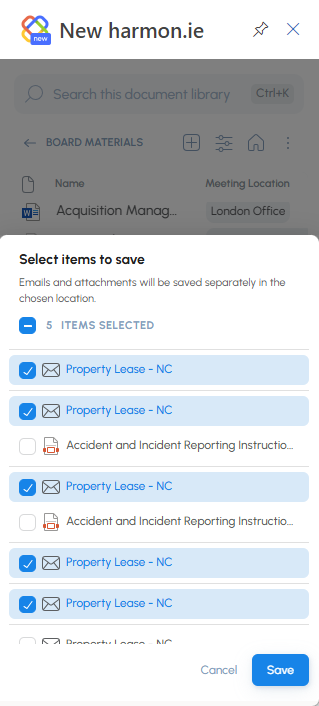
- If an email with the same name already exists in the location, you are prompted to replace the email, keep both, or skip it.
- If you or your admin have configured harmon.ie to open the property editor automatically, it opens after saving. Fill in the metadata and click Save.
The selected email(s) are uploaded to the selected location. You are prompted to Copy link or Edit details of the uploaded email.
How do I save attachments to SharePoint, Teams, or OneDrive?
You can save attachments either with drag and drop into harmon.ie or using the Save email action.
How do I save an attachment using drag and drop?
- In harmon.ie, locate the SharePoint, Teams, or OneDrive location in which you want to save the attachment.
- Drag and drop the attachment to the Microsoft 365 location in the Home view or to an area in the Content view. You are notified when the upload process ends.
Once uploaded, the attachment appears at the top of the file list. - If a file with the same name already exists in the location, you are prompted to replace the file, keep both, or skip it.
- If you or your admin have configured harmon.ie to open the property editor automatically, it opens after saving. Fill in the metadata and click Save.
How do I save attachments using the “Save email” action?
Outlook add-in only
- Open New harmon.ie.
- Select the email containing the attachment(s) you want to save.
- In harmon.ie, locate the SharePoint, Teams, or OneDrive location to which you want to save the attachments.
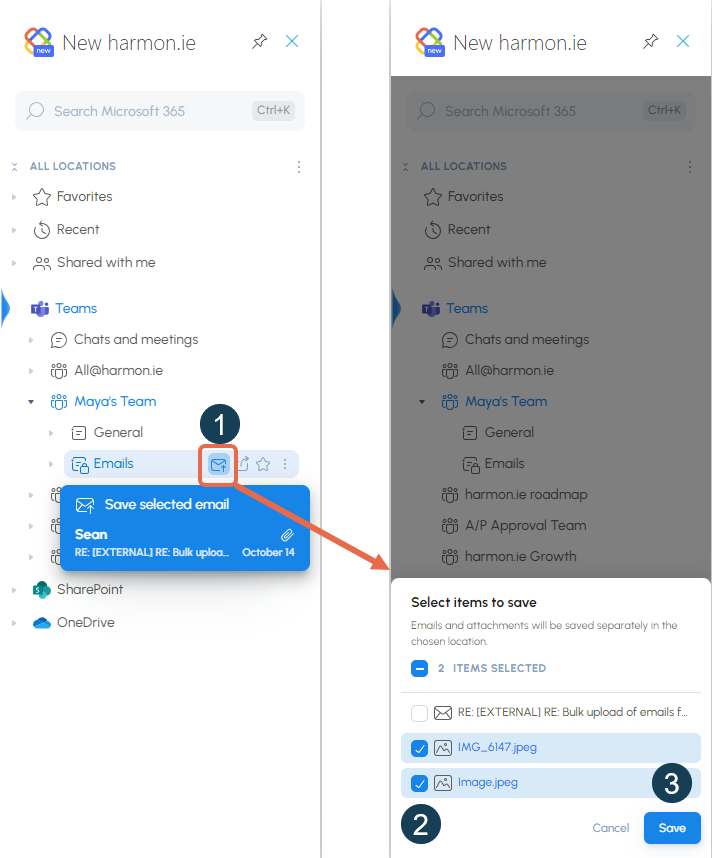
- Hover over the location name and click the Save email icon ().
Alternatively, double-click the location name to open it in the Content view and then click the Save email icon () at the top. - A dialog opens allowing you to select the attachment(s) you want to save as separate files in the location. You can uncheck the email itself if you don’t want to save it.
- If a file with the same name already exists in the location, you are prompted to replace the file, keep both, or skip it.
- If you or your admin have configured harmon.ie to open the property editor automatically, it opens after saving. Fill in the metadata and click Save.
How do I save an Outlook folder to SharePoint, Teams, or OneDrive?
Save an Outlook folder, its subfolders, and all their emails in one action. harmon.ie recreates the folder structure in the destination and saves each email in the folder it came from. You can save a folder with the Save Outlook folder action or with drag and drop.
How do I save an Outlook folder using the “Save Outlook folder” action?
- In harmon.ie, locate the SharePoint, Teams, or OneDrive location in which you want to save the folder.
- Right-click the location, click New (
 ), and select Save Outlook folder (
 ).
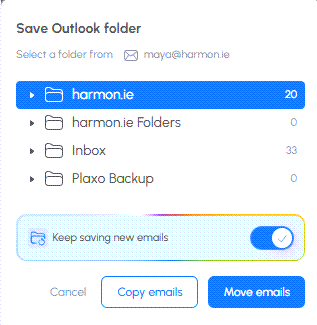
). - Select the Outlook folder you want to save. The folder holding the email you selected is picked for you.
- To keep saving emails that arrive in that folder from now on, turn on Keep saving new emails. This creates an Outlook folder rule, part of email automation (Beta).
- Click Copy emails to keep the emails in Outlook as well, or Move emails to move the Outlook copies to the Deleted Items folder.
- If the folder holds more than 100 emails, click Save all in the Save large folder prompt. You can cancel the transfer between emails; emails already saved stay saved.
- Outlook default folders such as Inbox and Sent Items can’t be saved. Folders you created inside them can.
- Only folders from your own mailbox can be saved.
- Copy emails is available only when email categories are consented for your organization, because the copies left in Outlook are marked with the saved-location category.
How do I save an Outlook folder using drag and drop?
- In harmon.ie, locate the SharePoint, Teams, or OneDrive location in which you want to save the folder.
- Drag the Outlook folder from the Outlook folder list onto the location.
- Choose whether to turn on Keep saving new emails, and click Copy emails or Move emails, as described above.
How do I save and send emails?
Outlook add-in only
harmon.ie lets you save emails and their attachments to SharePoint, Teams, or OneDrive when sending them, in one go.
- After composing your message, open harmon.ie:
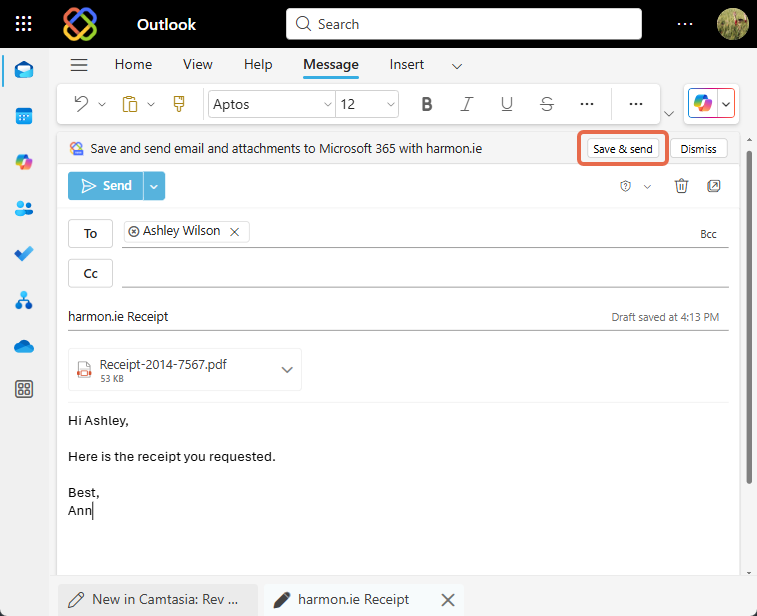
- Outlook for Windows (new) and Outlook on the web: Click the Save & send button at the top of the draft email window. This opens the harmon.ie sidebar.
- Outlook (classic): Open the harmon.ie sidebar.
- Outlook for Mac: Click the Save email button at the top of the draft email window. This opens the harmon.ie sidebar.
- Outlook for Windows (new) and Outlook on the web: Click the Save & send button at the top of the draft email window. This opens the harmon.ie sidebar.
- Hover over the desired SharePoint, Teams, or OneDrive location and click Save & send (Save email in Outlook for Mac).
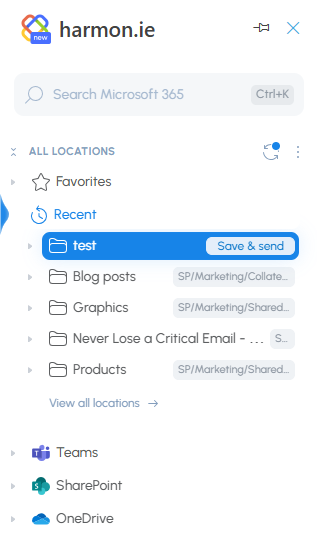
- To save the email to a new folder, double-click the parent location to navigate to it, click New () > Folder. Hover over the new folder and click Save & send.
- If the email has attachments, choose which ones to save and click Save.
- The email and/or attachments are saved to the selected location.
- In Outlook for Windows (new) and Outlook on the Web, the email is sent automatically.
- In Outlook for Mac and Outlook (classic), you’ll need to send the email manually.
How to rename an email or attachment when saving to SharePoint or Teams?
- In harmon.ie settings, configure the property editor to always open after saving.
- Save an email, save an attachment, or use Save & send.
- The property editor opens automatically. Edit the file name and click Save.
Saved emails: format, metadata, categories
When you save emails to Microsoft 365 using New harmon.ie:
- Optionally delete the email from Outlook after it’s saved.
- Understand email format and naming.
- harmon.ie adds an Email view to the location and saves email headers in SharePoint columns.
- Apply categories to saved emails in your inbox to help you recognize what was saved and where.
Delete emails after saving
harmon.ie can delete an email from Outlook after it is saved to Microsoft 365, so saving moves the email rather than leaving a copy in your mailbox. Deleting moves the email to the Outlook Deleted Items folder, where it stays recoverable.
Turn this on with the Delete emails after saving setting. Your administrator can also enable or disable it for the whole organization.
This setting doesn’t apply to emails saved by your automation rules. The exception is an Outlook folder rule created with Move emails, which moves them to Deleted Items.
Saved email format and naming
harmon.ie saves your Outlook emails as .eml files in Microsoft 365 and names them automatically based on your organization’s naming settings.
Email format
New harmon.ie saves emails to Microsoft 365 in .eml format, which preserves the original formatting and metadata of the message.
Email file name
Emails are named as follows:
- By default, the email name is the email subject line. Your administrator can configure the format of saved email names, and add the sender, the date, or both.
- When you save an email whose name already exists in the location, you are prompted to replace it, keep both, or skip it. If you keep both, a version number is appended to the name.
- Emails saved by automation always get a unique name, built from the subject, sender, and date.
Email view and header mapping in SharePoint and Teams
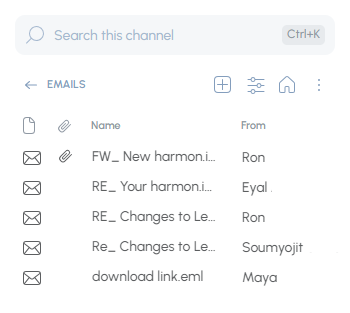
When you save emails to SharePoint or Teams, harmon.ie saves the email headers as SharePoint metadata and adds an Email view to the location. The following email headers are saved in corresponding email columns:
- Has attachments – The attachment icon indicates that the email has attachments.
- Name – As explained in Email file name.
- To – Recipient names.
- From – Sender name.
- Received – Date and time when the email was received.
Selecting the Email view will display email messages and folders, with the email columns in a grid view.
If the email headers are not saved as metadata, or the Email view is missing in a location, contact your administrator.
Email categories in Outlook
harmon.ie applies categories to emails saved to Microsoft 365.
These categories help you quickly recognize saved emails in your inbox and understand where they were filed.
What categories you’ll see
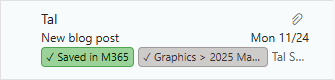
- Saved in M365 – Indicates that the email was saved to Microsoft 365.
- Location category – Shows the exact SharePoint, Teams, or OneDrive location where the email was saved. Hover over the category to view the full path.
Why this is useful
- Instantly see which emails were saved and which still need to be filed.
- Find out where an email was saved.
- Filter your inbox to view only saved emails.