New harmon.ie
 Share Files From SharePoint, Teams, or OneDrive
New harmon.ie allows you to share SharePoint, Teams, and OneDrive locations and files (documents or emails) with your coworkers – quickly and securely.
There are a few ways to share a location or a file using harmon.ie:
- COPY LINK: Copy a location/file link, then share it anywhere.
- SHARE BY EMAIL:
- SHARE IN TEAMS: Share the location or file with a person, group, or channel in Microsoft Teams.
Attach or share SharePoint files without leaving Outlook?
How to copy links to Microsoft 365 locations or files?
Use harmon.ie to quickly locate a SharePoint, Teams, or OneDrive location or file, then copy a link to it that you can share anywhere. To do that:
- In harmon.ie, locate the location or file you want to copy a link to.
- Hover over the location or file, and then click Copy link (
 ).
).
Alternatively, click Share ( ) and select Copy link.
This copies a link to the selected item to your clipboard.
Copy links to multiple items
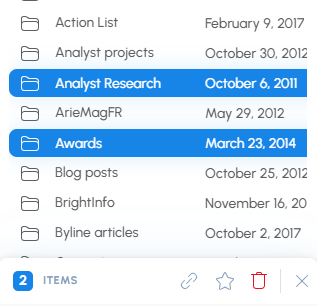
To copy links to multiple items, first select all items, then use one of these options:
- Option 1: Use the selection footer – Click Copy links () in the footer.
- Option 2: Use the context menu – Right-click the selection and select Copy links.
Tip: If you paste a copied link into an email, Outlook checks whether the recipients have access to the item and warns you if they don’t.
How to add links to an email
Add a link to a SharePoint, Teams, or OneDrive location or file to an email, instead of attaching the content. You can do this in two ways: from the Share menu, or using drag and drop.
Add a link from the Share menu
Add a link to a draft email
- Open the harmon.ie sidebar in your email draft.
- Locate the location or file you want to share.
- Hover over the item, click Share (), then select Add as link (
 ).
).
Start a new email with links
- Open the harmon.ie sidebar in Outlook.
- Locate the location or file you want to share.
- Hover over the item, click Share (), then select Email with link.
Add links to multiple items
Select all the items, then use one of these options:
- Selection footer: click Email with links or Add as links in the footer.
- Context menu: right-click the selection and select Email with links or Add as links.
Add a link using drag and drop
- While composing an email, start dragging one or more items from harmon.ie. A drop area appears at the top of the sidebar as soon as you start to drag – it isn’t shown at any other time.
- Drop them on Add as links to add a link to each.
Add as link and Email with link add the link(s) to the email, but harmon.ie can’t check whether the recipients have access to the linked items. Make sure the recipients have access before you send.
If you instead copy the link and paste it into the email yourself, Outlook checks the recipients’ access and warns you if they don’t have it.
How to attach files to an email
Attach a SharePoint, Teams, or OneDrive file to an email. You can do this in two ways: from the Share menu, or using drag and drop.
Attach a file from the Share menu
Outlook add-in only
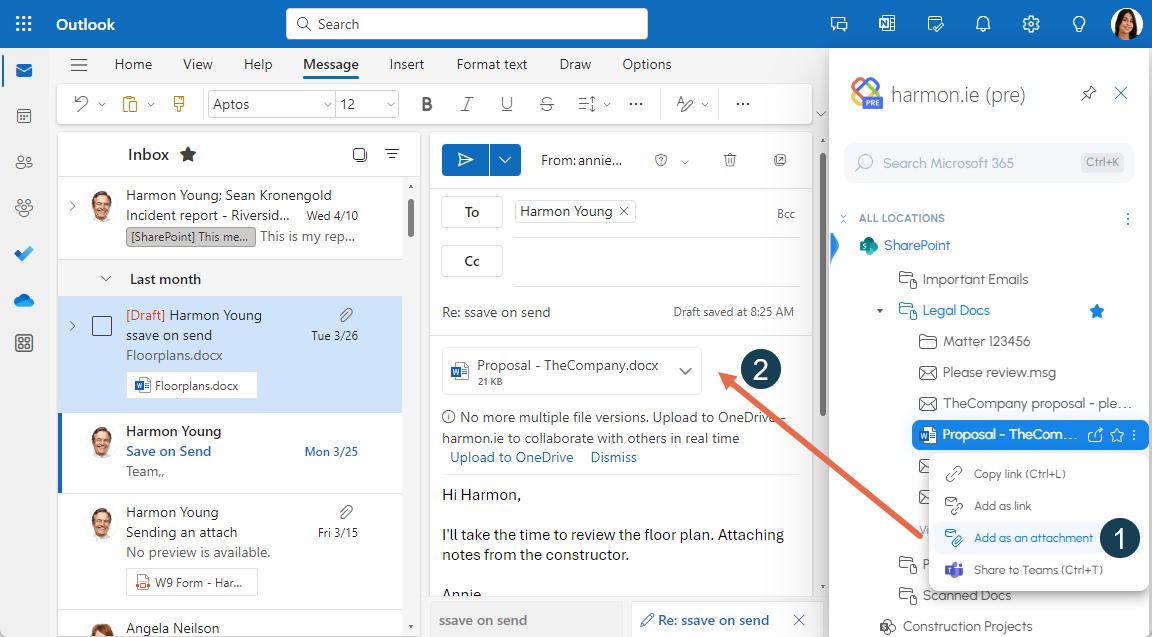
Add an attachment to a draft email
- Open the harmon.ie sidebar in your email draft.
- Locate the file you want to attach.
- Hover over the file, click Share (), then select Add as attachment (
 ).
).
Start a new email with attachments
- Open the harmon.ie sidebar.
- Locate the file you want to attach.
- Hover over the file and click Email with attachment (). Alternatively, click Share () and select Email with attachment.
Attach multiple files
Select all the files, then use one of these options:
- Selection footer: click Email with attachments or Add as attachments in the footer.
- Context menu: right-click the selection and select Email with attachments or Add as attachments.
The following limitations apply to Email with attachment:
- This action is not available in Outlook (classic).
- In Outlook for Mac, you may need to allow Outlook to open a pop-out email: Open Outlook Settings > Mail > Compose and reply, select Pop-out to a new window and then click Save.
- This feature requires an additional permission that was introduced in version 1.3. If this permission was not
granted, the feature will not be available.
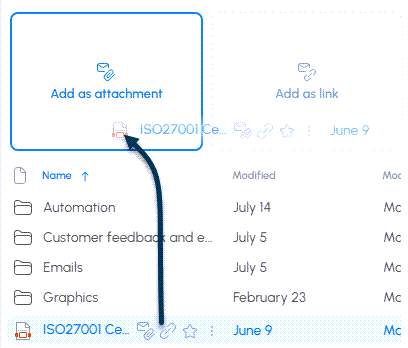
Attach a file using drag and drop
Outlook add-in
Outlook add-in only
- While composing an email, start dragging one or more files from harmon.ie. A drop area appears at the top of the sidebar as soon as you start to drag – it isn’t shown at any other time.
- Drop them on Add as attachments to attach them.
Desktop app
Desktop app only
- Select one or more files in the harmon.ie Desktop app and drag them onto the body of an open email.
- Outlook shows two drop areas. Drop the files on the one you want:
- Attach files – attaches the files to the email.
- Upload to OneDrive and share link – Outlook uploads the files to your OneDrive and inserts a link to them in the email.
Upload to OneDrive and share link doesn’t link to the file where it already lives – Outlook uploads a separate copy to your OneDrive and links to that copy. The copy doesn’t stay in sync with the original, and it isn’t covered by the permissions of the SharePoint or Teams location the file came from.
To send a link to the original file instead, use harmon.ie:
- Copy link, then paste it into the email. Outlook then checks whether the recipients have access to the item and warns you if they don’t.
- Add as link (Outlook add-in only) to insert the link directly.
How to share a Microsoft 365 file in Microsoft Teams?
Outlook add-in only
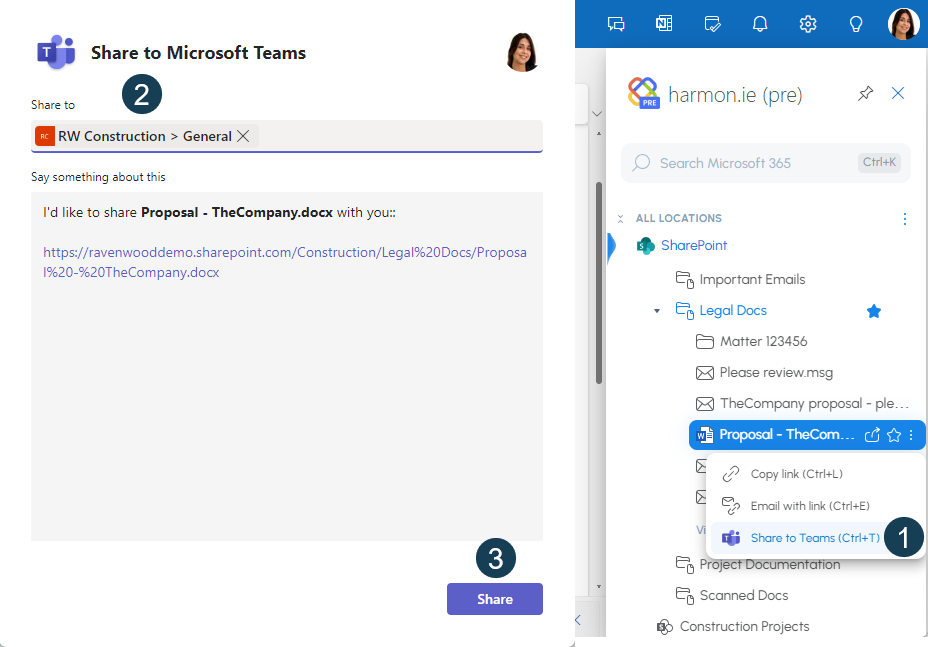
Use harmon.ie to quickly locate a SharePoint, Teams, or OneDrive document library, folder, or file, then share it with your coworkers in Teams. To do that:
- In harmon.ie, locate the location or file you want to share in Teams.
- Hover over the location or file, and then click Share (). Select Share to Teams (
 ).
). - This launches the Share to Microsoft Teams dialog.
Start typing the name of a person, group, or channel you want to share the file with. A list of matching people, groups, and channels is shown. Select one or more people, groups, or channels by clicking their names in the list. - Optionally, edit the message that will accompany the shared file.
- Click Share.
- A link to the file is posted in Teams. Either click Go to Teams to continue the conversation there or click Close to return to Outlook.