New harmon.ie
 Get Started With New harmon.ie
New harmon.ie connects Outlook with Microsoft 365, allowing you to save emails and attachments directly from Outlook into SharePoint, Teams, or OneDrive, and to find, share, and organize your work across Microsoft 365.
New harmon.ie is available in two editions:
- harmon.ie for Outlook: An Outlook add-in that works in Outlook for Windows (new Outlook), Outlook (classic), Outlook for Mac, and Outlook on the Web, including modern browsers such as Edge and Safari.
- harmon.ie Desktop app: A standalone application that provides the harmon.ie interface in a resizable window. Available for Windows.
Learn more about New harmon.ie’s features and use cases on the New harmon.ie product page, and see what’s coming next on the New harmon.ie roadmap.
What can you do with New harmon.ie?
You can use harmon.ie to perform these tasks:
- SAVE:
- AUTOMATE (Beta):
- SHARE:
- Share Microsoft 365 locations and files with your colleagues by sharing a link in email or attaching a file to email.
- Share locations and files in Teams chats, groups, and channels.
- SEARCH:
- Quickly find files across Microsoft 365, using advanced search options.
- Find files in a specific Microsoft 365 location or a harmon.ie group (such as Recent, or Shared with me).
- MANAGE:
- Manage your Microsoft 365 files – open in web or desktop apps, create, rename and delete files and folders.
- Manage metadata.
This article is intended for new users.
If you are familiar with harmon.ie Classic, we suggest reading this Get started with New harmon.ie (For harmon.ie Classic Users) guide.
To get New harmon.ie up and running:
1. Get access to New harmon.ie:
New harmon.ie is available as an Outlook add-in and a desktop app (Windows).
- Evaluating harmon.ie? Start a free trial to get the Outlook add-in (from Microsoft Marketplace) and the desktop app.
- Already licensed for your organization? harmon.ie may already be deployed by your administrator. If you don’t see the add-in in Outlook or the desktop app isn’t available, contact your administrator.
2. Open New harmon.ie
Open harmon.ie in the environment where you work with Outlook or launch the harmon.ie Desktop app.
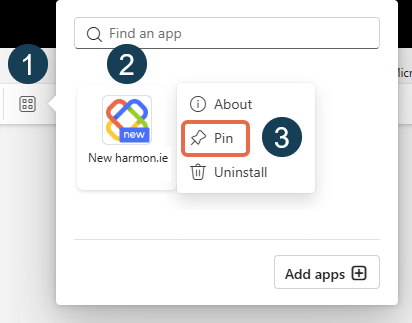
 ), so you don’t have to launch it every time.
3. Connect New harmon.ie to Microsoft 365
The first time you open New harmon.ie, you’ll have to perform these steps:
- Click Sign in with Microsoft and provide your Microsoft credentials.
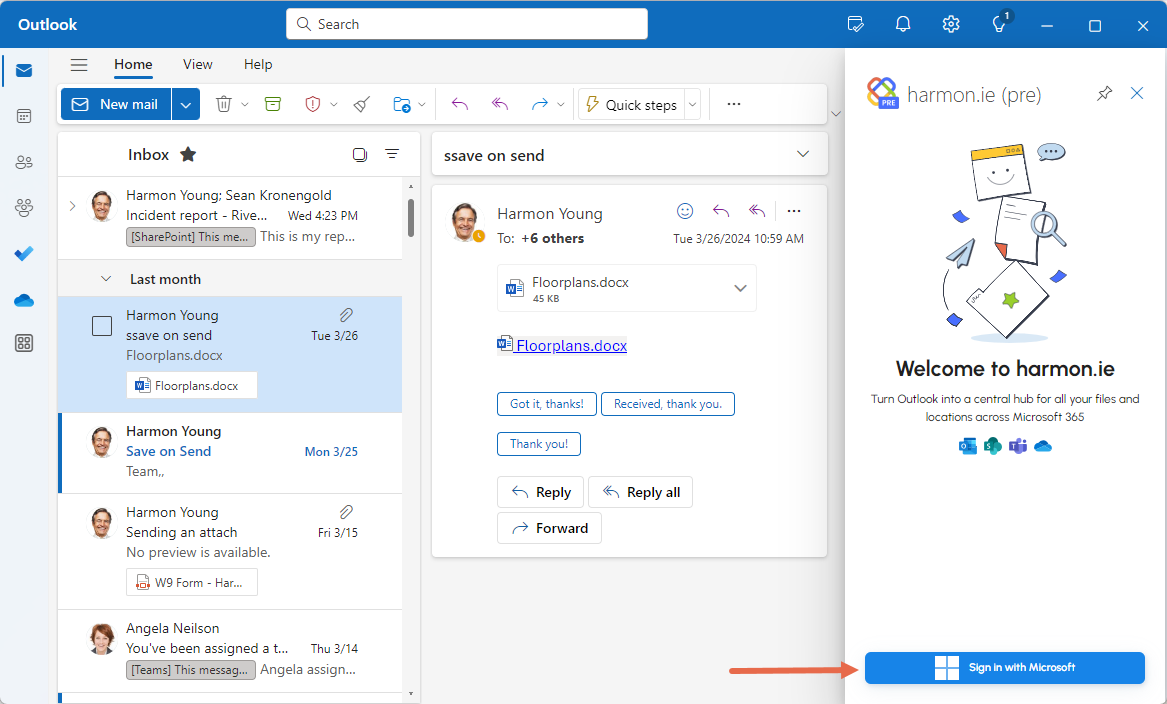
- If an administrator hasn’t granted consent for you, you are prompted to grant harmon.ie consent to connect to your Microsoft 365 locations. Click Accept, or contact your administrator.
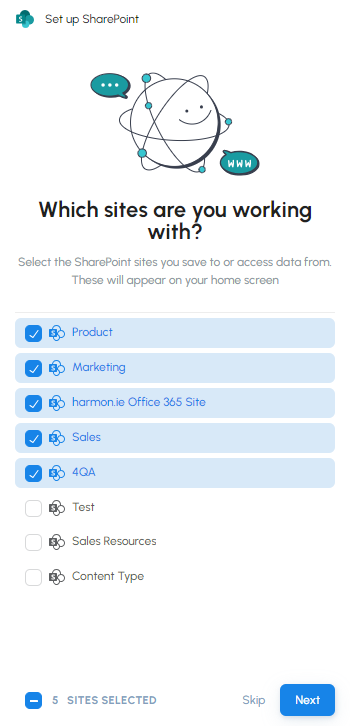
- harmon.ie displays a list of SharePoint sites and SharePoint hub sites, with your frequently used sites pre-selected. Sites your administrator configured for all users are also pre-selected and can’t be unselected. You can add or remove other sites, then click Next.
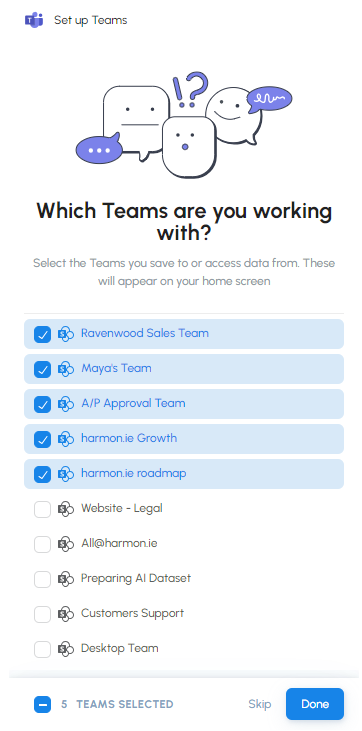
- harmon.ie displays a list of teams you frequently work with. Add or remove teams from the list and then click Done.
4. Get to know harmon.ie
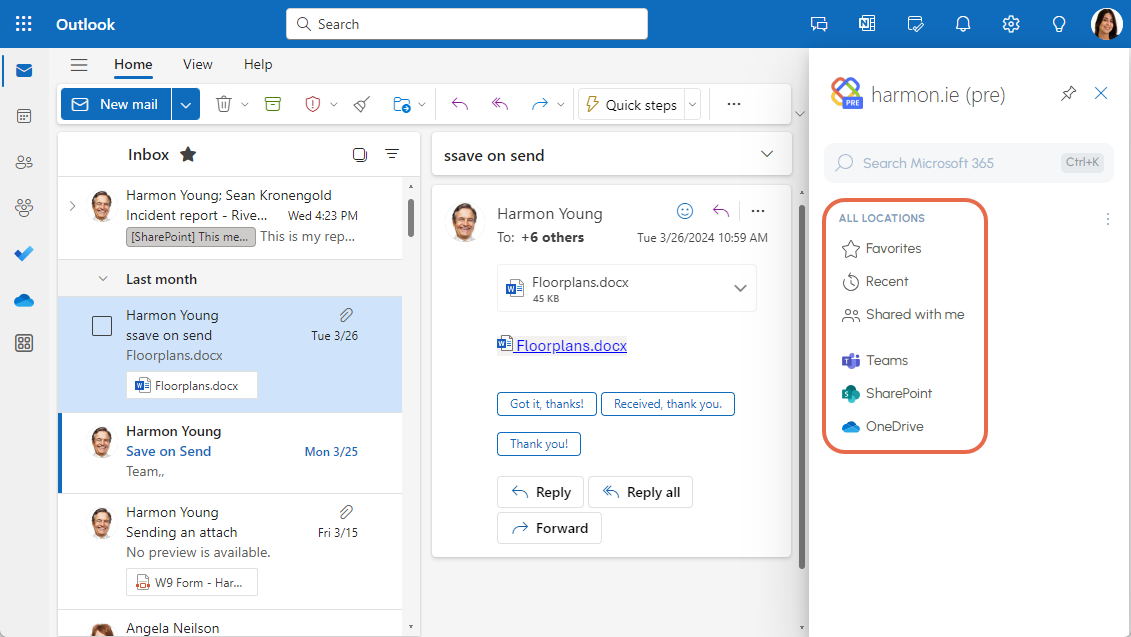
Now that harmon.ie is connected to Microsoft 365, take a moment to get familiar with the interface, where you can access and work with all your SharePoint, Teams, and OneDrive locations and files. To find your way around, read Get to know New harmon.ie.
Open New harmon.ie in Outlook for Windows (new and classic) and Outlook for Web
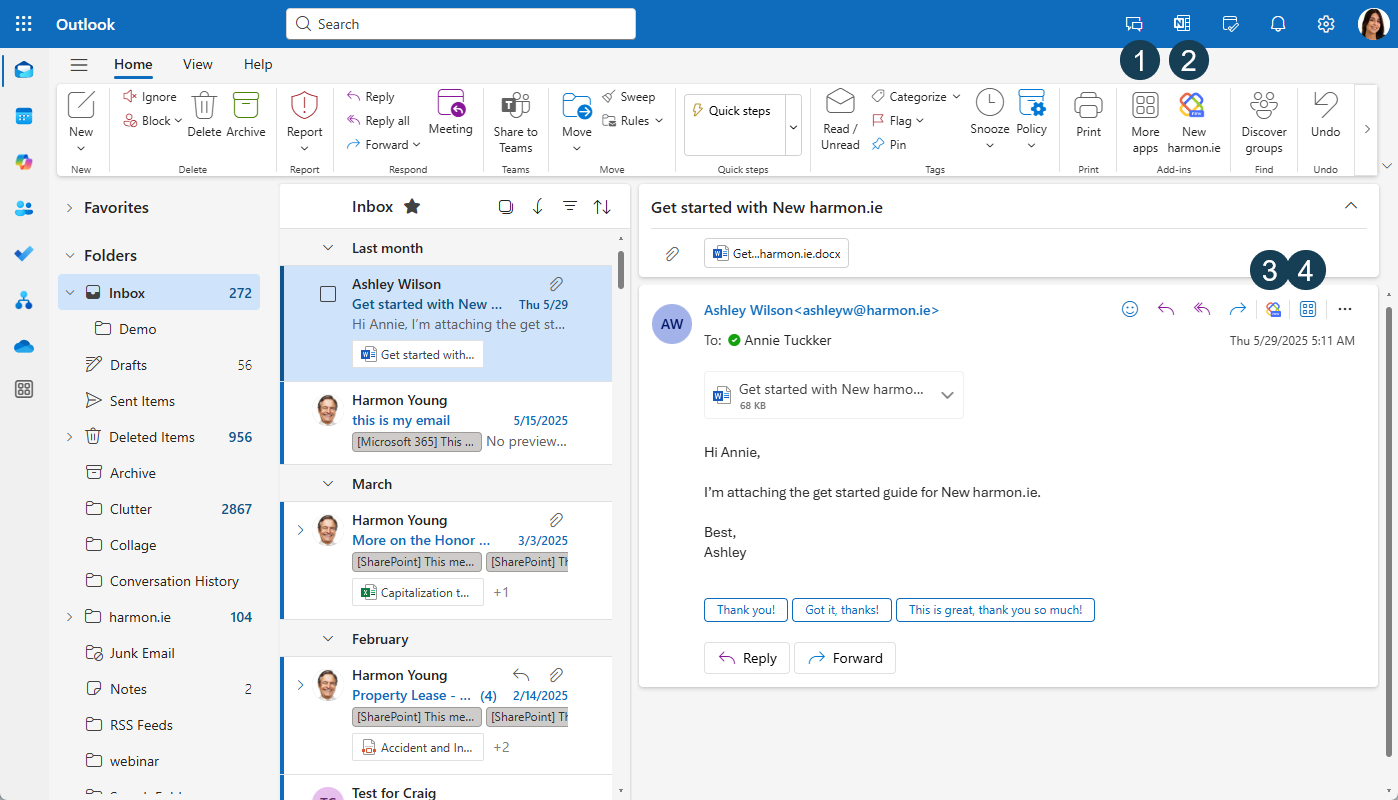
You can open New harmon.ie from the following Outlook locations:
- From the main ribbon, via the Apps icon (
 )
) - From the toolbar, if it was pinned by you or by your administrator
- From the message toolbar (above the message body), if it was pinned – Available in Outlook for Windows (new Outlook), and Outlook for Web, when viewing an email, not when composing
- From the email message ribbon, via the Apps icon () – Available in Outlook for Windows (new Outlook), and Outlook for Web, when viewing an email, not when composing
Open New harmon.ie in Outlook for Mac
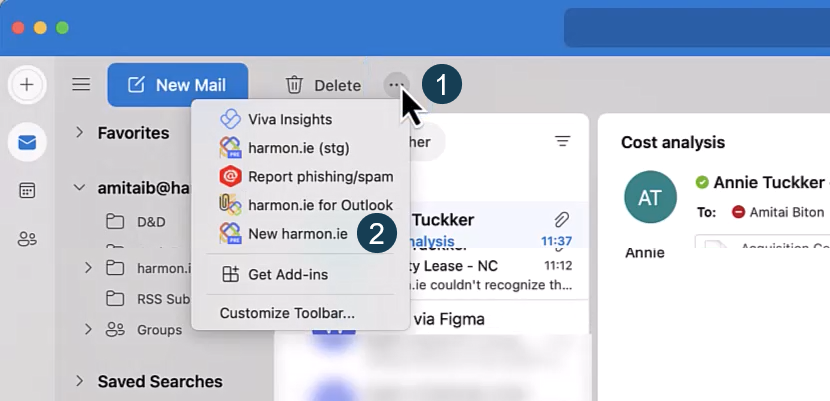
- Click the ellipsis (…) button in Outlook.
- Select New harmon.ie from the list.
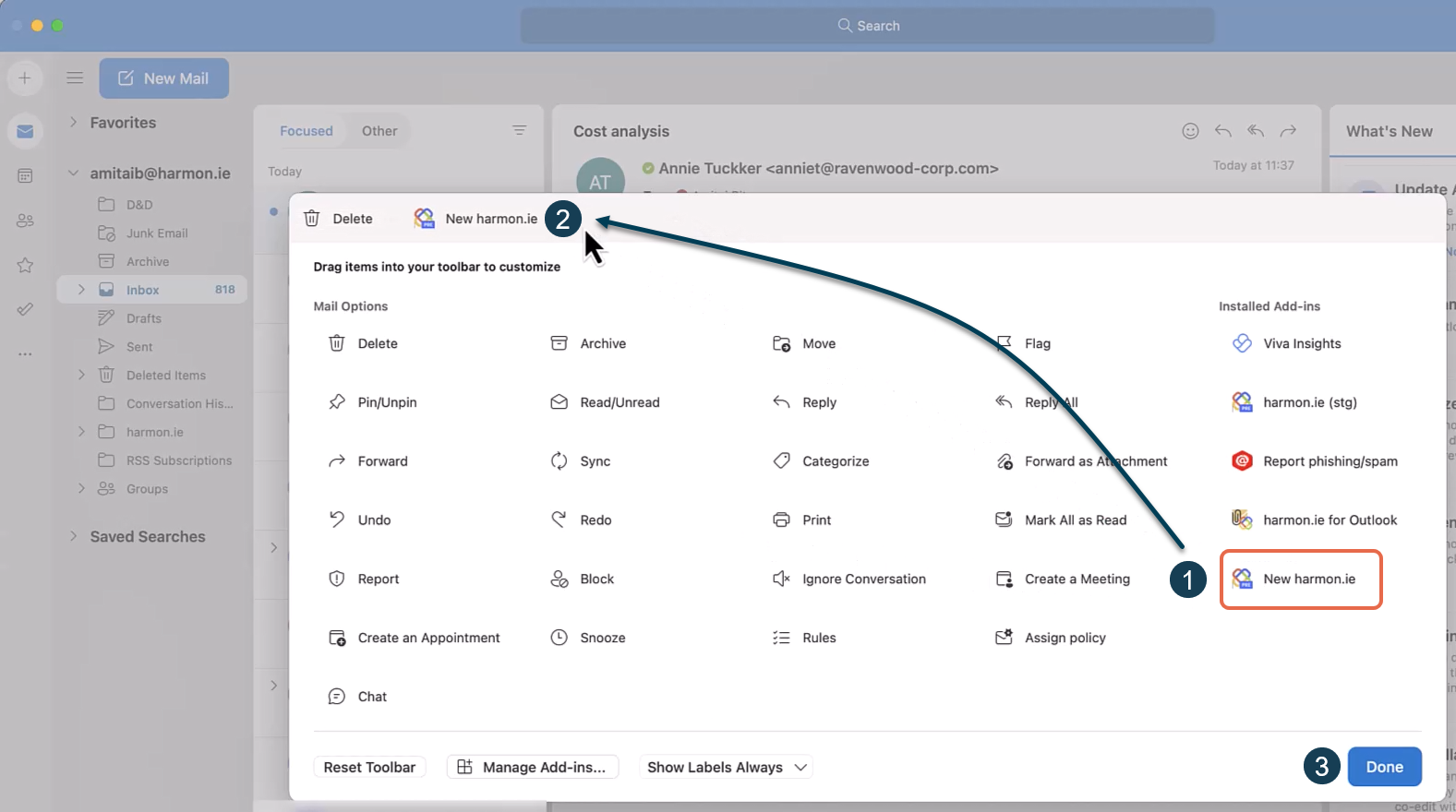
- Click the ellipsis (…) button in Outlook.
- Click Customize toolbar, then drag and drop New harmon.ie to the top of the dialog.
- Click Done.
Open the harmon.ie Desktop app
The harmon.ie Desktop app provides a wider, dedicated workspace that stays open independently of Outlook. You can launch it in two ways:
- From Windows: Open the Start menu and launch New harmon.ie.
- From the add-in: Click Open harmon.ie desktop (
 ) in the Home or Content view. The desktop app opens at the same location you are currently browsing in the add-in.
- Click the Always on top icon (
 ) to keep the harmon.ie window above other applications.
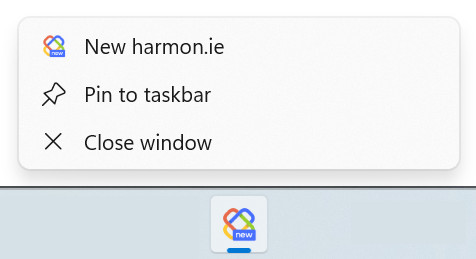
 - For easier access, pin harmon.ie to the taskbar and configure it to start automatically with Windows.