New harmon.ie
 Find content across Microsoft 365 using harmon.ie
New harmon.ie allows you to quickly find content across SharePoint, Teams, and OneDrive:
- NAVIGATE: Move between your SharePoint, Teams, and OneDrive locations and files using the Home and Content views, the navigation path, and back and forward.
- SEARCH:
- Search across Microsoft 365.
- Search in a specific Microsoft 365 location – team, channel, site, subsite, document library, or folder.
- Filter your search by specific app – SharePoint, Teams, or OneDrive – or search for folder or by file type.
- FILTER: Filter a Microsoft 365 location or search results by type.
- FAVORITES: Mark favorite Microsoft 365 locations and files and organize into favorite folders, so you can quickly find them later.
- RECENT: View the recent Microsoft 365 files you opened and folders you uploaded content to, so you can continue working with them.
- SHARED WITH ME: View the recent Microsoft 365 files that were shared with you.
- VIEW: Select a SharePoint or harmon.ie view to focus on relevant content.
- SORT: Sort the list of files by any column, in ascending or descending order.
How to navigate between your Microsoft 365 locations and files with New harmon.ie?
New harmon.ie has two views – the Home view and the Content view. To learn what each view shows, read Get to know New harmon.ie. Use them to browse through your Microsoft 365 locations and files:
Browse your locations
- In the Home view, expand a location (
 ) to see its sub-locations and recent files.
 - Double-click a location to open it in the Content view, then double-click a sub-location or folder to drill in further.
- From the Content view, click Home (
 ) to return to the Home view.
Use the navigation path
In the Content view, the navigation path shows where you are and lets you move back up the path.
- The navigation path shows the path to your current location and adapts to the available space:
- When the full path fits, it appears as a breadcrumb trail on its own line.
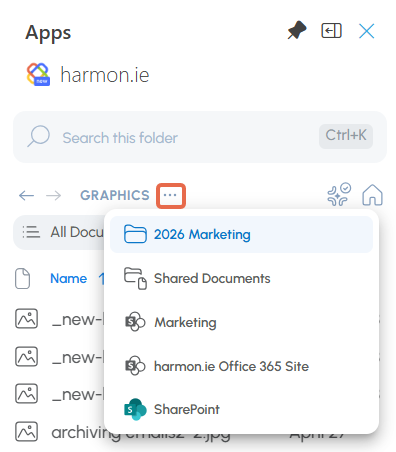
- When the path is too long to fit, it collapses into a menu (
 ) that stands in for the hidden parent locations. Select it to open them as a drop-down list, with the nearest parent at the top and the top-level site at the bottom.
- Select any segment of the path to jump straight to that level.
- Hover over a location name to see its full path, in case it is too long to display.
Move back and forward
Use the Back and Forward buttons to move through the locations you have recently visited, the same way you navigate in a web browser.
- Back (
 ) returns you to the previous location.
 - Forward (
 ) returns you to where you were before you selected Back.
 - Going to Home clears your back and forward history; navigation history starts fresh from there.
How to view Microsoft 365 recent files and folders?
- In harmon.ie, click the Home icon () to open the Home view.
- Expand Recent to see the latest Microsoft 365 files you accessed, as well as recent Microsoft 365 locations you uploaded files to using harmon.ie.
From here you can:
- Open, mark as favorite, or share files: Double-click a file to open it, or hover over a file to see a thumbnail preview and quick actions.
- Open the full Recent view: Double-click Recent, right-click it and select Open, or click View all files.
- Refresh: Hover over Recent and click Refresh (
 ). The list is refreshed automatically once a day.
 - Manage the group: Hover over Recent and click Manage Items (
 ) to configure how many files you want to view in this group (default is 5).
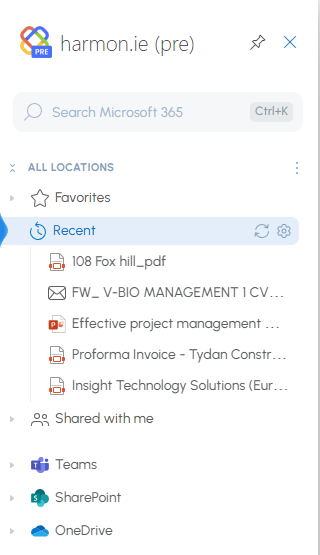
Recent – full list view
Double-click Recent to open the full list of recent files and locations.
From here you can:
How to view Microsoft 365 files and folders shared with you?
- In harmon.ie, click the Home icon () to open the Home view.
- Expand Shared with me to see the most recent Microsoft 365 files and folders shared with you.
From here you can:
- Open, favorite, or share files: Double-click a file to open it, or hover over a file to see a thumbnail preview and quick actions.
- Open the full Shared with me view: Double-click Shared with me, right-click it and select Open, or click View all files.
- Refresh: Hover over Shared with me and click Refresh (). The list is refreshed automatically once a day.
- Manage the group: Hover over Shared with me and click Manage Items () to:
- Configure how many files you want to view in this group (default is 5).
- Control whether to include email attachments that were sent to you.
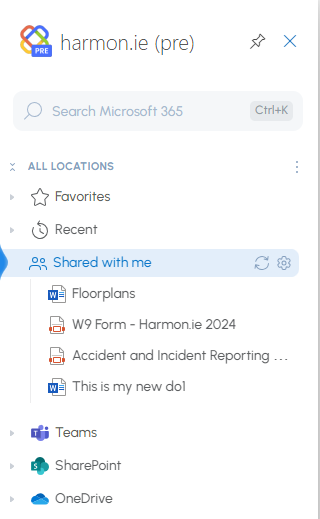
Shared with me – full list view
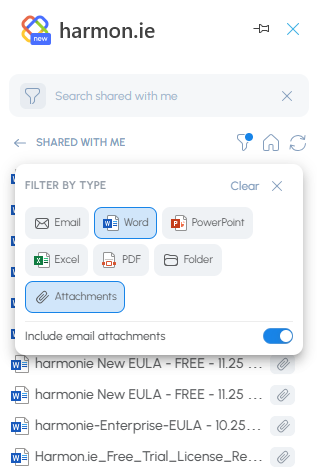
Double-click Shared with me to open the full list of files shared with you. You can also choose to include email attachments.
From here you can:
- Search for files shared with you.
- Filter the list by file type (
 ).
). - Include or exclude email attachments using the filter dialog.
- When email attachments are included, you can filter the list to show only attachments.
How to search across Microsoft 365?
- In harmon.ie, click the Home icon () to open the Home view.
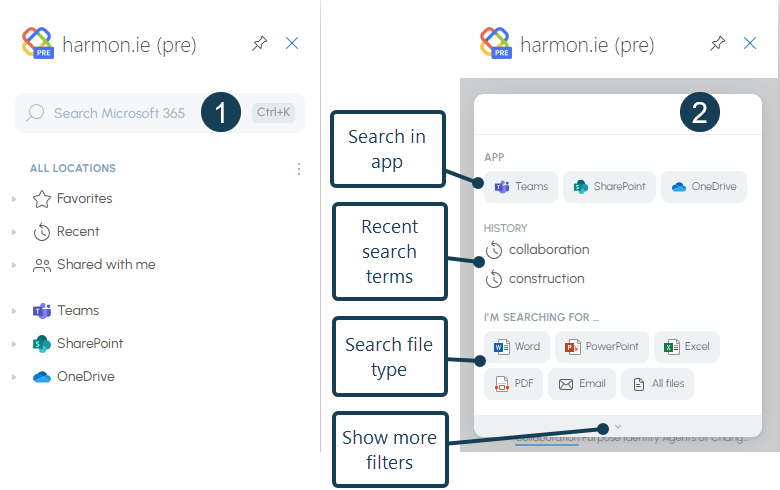
- To start the search, click inside the search bar (
 ), or click Ctrl+K.
 - Optionally, select one of the search filters:
- Select the app you want to search in – Teams, SharePoint, or OneDrive.
- Select the type of file you are looking for – Word, PowerPoint, Excel, PDF, Email, or All files.
- Click Show more filters (
 ) to search by these additional file types: Team, Channel, Site, Library, or Folder.
- Type the search term (or select it from your recent search terms).
- harmon.ie searches as you type and displays the best results that match your search term and parameters.
- Click Show more results to view all results. The number of results is displayed at the bottom. Scroll down to view more results.
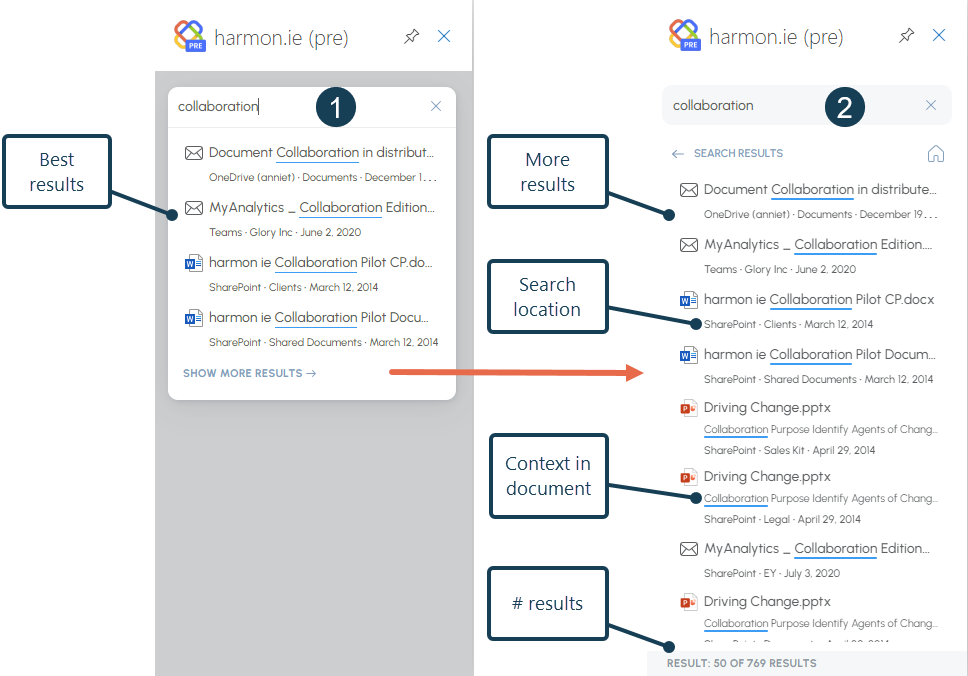
For each result harmon.ie shows:
- The file name. If the name matches the search term, the word in the name is highlighted.
- If the search term is found within the content of the file, harmon.ie shows one line of text with the search term highlighted.
- The app where the result was found (SharePoint, Teams, or OneDrive).
- The location of the file.
Here are the actions you can perform on global search results:
- Hover over the file name to view its thumbnail.
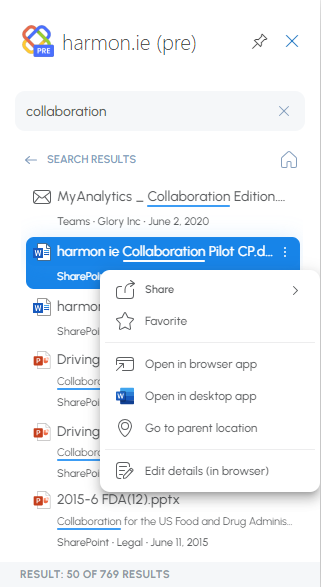
- Hover over the file name or right-click it for quick actions, such as Favorite, Share, Open, Open containing location, Edit details, and more.
- Double-click a file to open it.
- Click the file location to open it. The file is displayed at the top of the file list.
- Right-click file name for quick actions.
- Click Back () to get back to the previous view, or Home () to go to Home view.
- Click Clear (
 ) to clear the current search.
How to search in a specific Microsoft 365 location?
- In harmon.ie, locate the SharePoint, Teams, or OneDrive location where you want to search.
- Double-click the location to open it in the Content view.
- To start the search, click inside the search bar (), or click Ctrl+K.
- Type the search term.
- harmon.ie searches as you type in the current location and all sub-locations, and shows a list of matching items. Each item is displayed in a table view with its metadata.
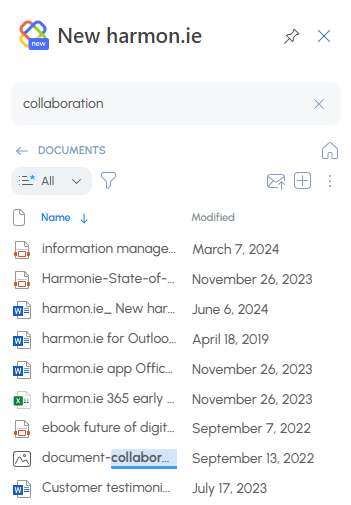
Here are the actions you can perform on location search results:
- Filter the results by file type.
- Hover over the location or file to view its thumbnail.
- Hover over the location or file or right-click it for quick actions, such as Favorite, Share, Open, Edit details, Rename, Delete, and more.
- Double-click a file or location to open it.
- Click Back () to get back to the previous view, or Home () to go to Home view.
- Click Clear () to clear the current search.
How to filter a Microsoft 365 location by type?
- Click the Filter icon (), available in the Content view and in search results.
- Select one or more file types. When selecting Email, you can select to show Only emails with attachments.
This option is available after selecting the Email type, if the current view includes the Attachments property.
- harmon.ie will display only files of the selected types. A dot is added to the filter icon (
 ) to indicate that the current view is filtered.
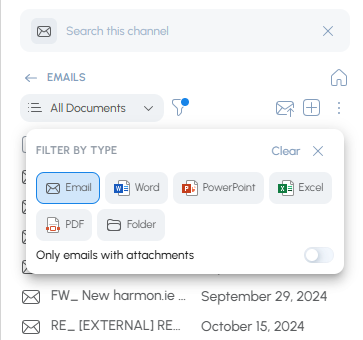
To clear the current filter:
- Click the Filter icon ().
- Click Clear then close the Filter dialog.
How to select a SharePoint or harmon.ie view?
- In harmon.ie, locate the SharePoint, Teams, or OneDrive location you want to view.
- Double-click the location name to open it in the Content view.
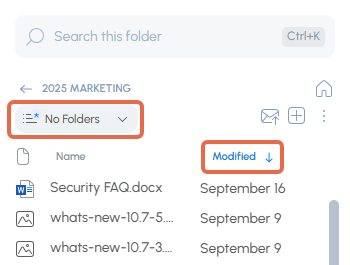
- Click the view drop-down list
- Select a view from the list.
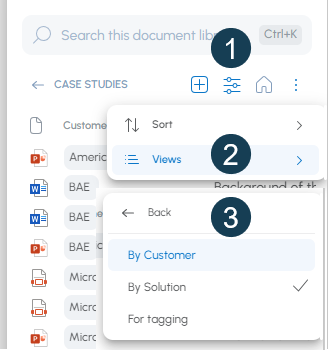
What are the available views?
- SharePoint views: harmon.ie supports views of type Standard View. These aspects of the SharePoint views are taken:
- Columns. The view can define a set of visible columns for a document library/list.
- Sort. Items can be sorted by one or two columns.
- Filter. Documents, folders and lists can be filtered by criteria. For example, the view can define only items of a specific content type to be shown.
- Group By. Items can be grouped by column.
- Folders. Specify whether to navigate through folders to view items, or to view all items at once.
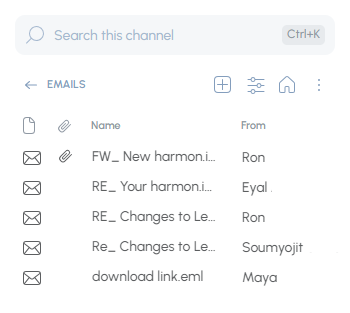
- Emails view: When saving email messages to Microsoft 365, harmon.ie adds an Email view and saves email headers in SharePoint columns. The Email view displays email messages and folders, with the email columns in a grid view.
How to sort the list of files in New harmon.ie?
- In harmon.ie, locate the SharePoint, Teams, or OneDrive location you want to sort.
- Double-click the location name to open it in the Content view.
- Click a column header to sort by this column in ascending order. Click again to sort by descending order.