New harmon.ie
 Upgrade New harmon.ie to the Latest Version
New harmon.ie has two components that update differently:
- New harmon.ie for Outlook updates automatically in the background for most releases. Admin approval is only required when a release introduces manifest changes.
- New harmon.ie desktop app: If deployed from the Microsoft Store via Intune, the app updates automatically. If deployed using the MSI package, each new version must be downloaded and redeployed manually.
New harmon.ie for Outlook
The Outlook add-in updates automatically in the background, with no action needed from users or admins for most releases.
Only when a release introduces changes to the manifest file, such as new permissions or event-based features, admin approval is required. Until the admin accepts the changes, end users will not be able to use the new features. harmon.ie will notify you about the required action through a pop-up in the app and the What’s New in New harmon.ie page.
How to approve new features?
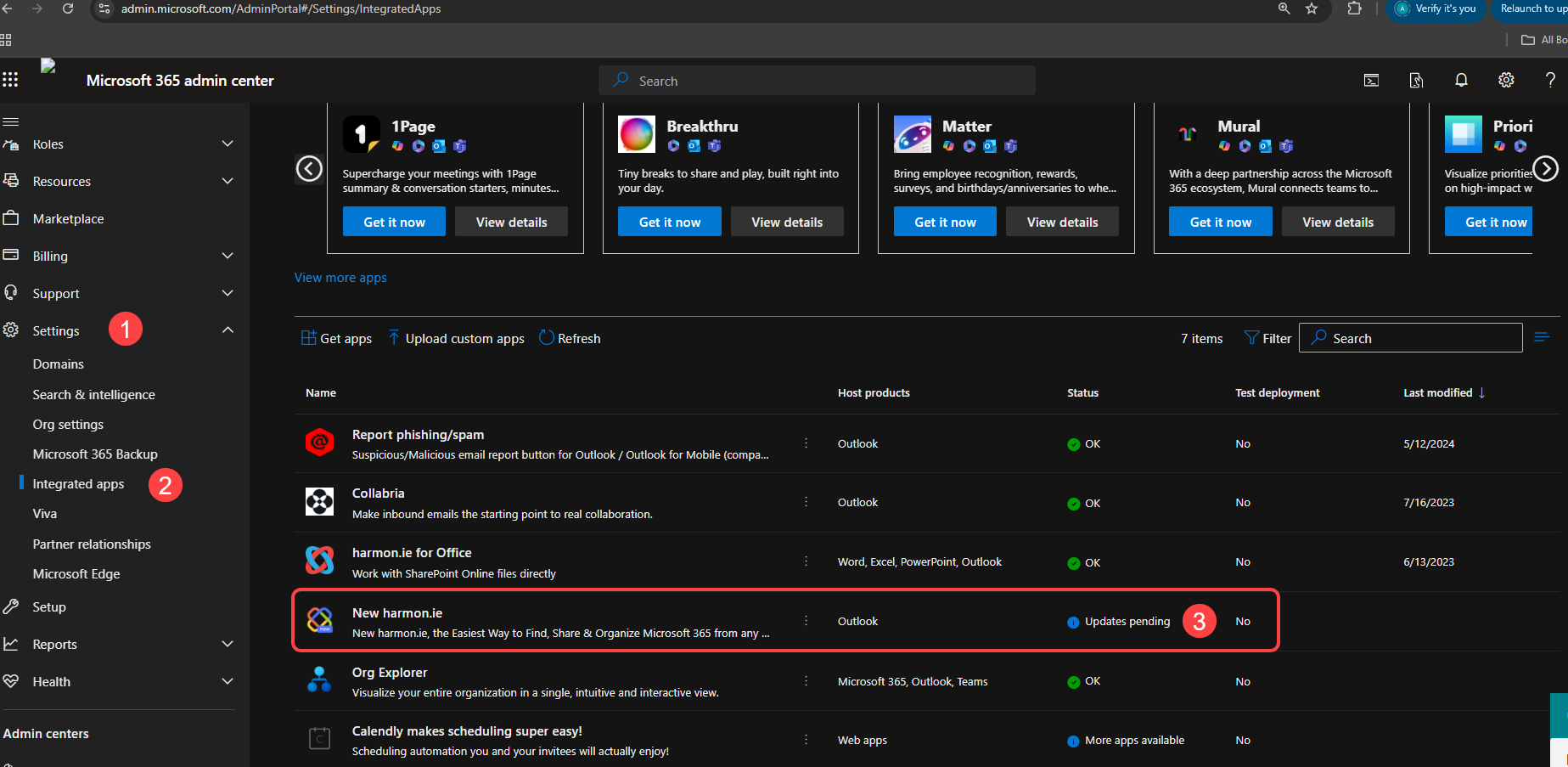
- Login to Microsoft 365 Admin Center.
- Click Show all.
- Click Settings > Integrated apps.
- Locate New harmon.ie under Deployed apps. The app’s status will be Updates pending.
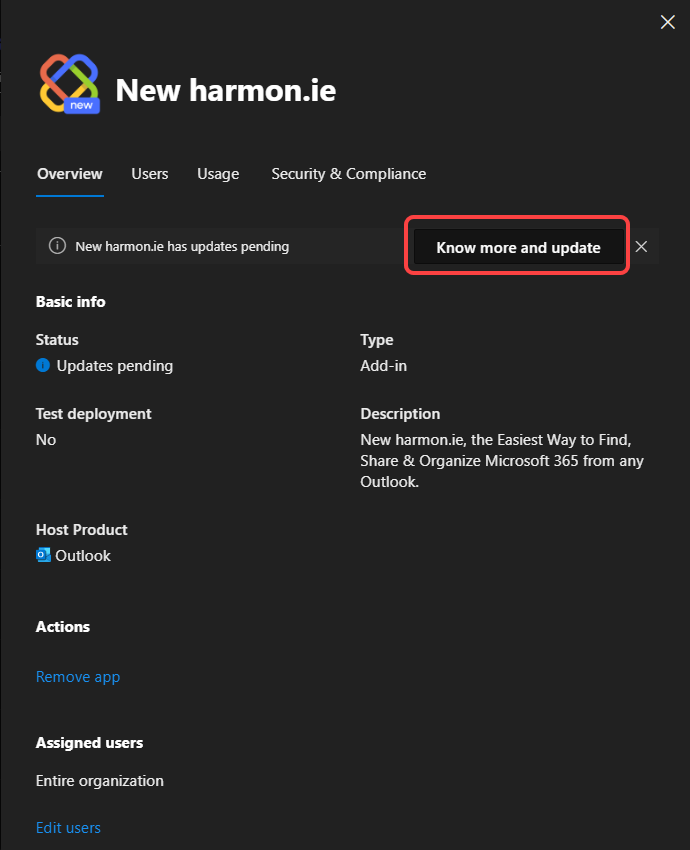
- Click New harmon.ie and then click Know more and update.
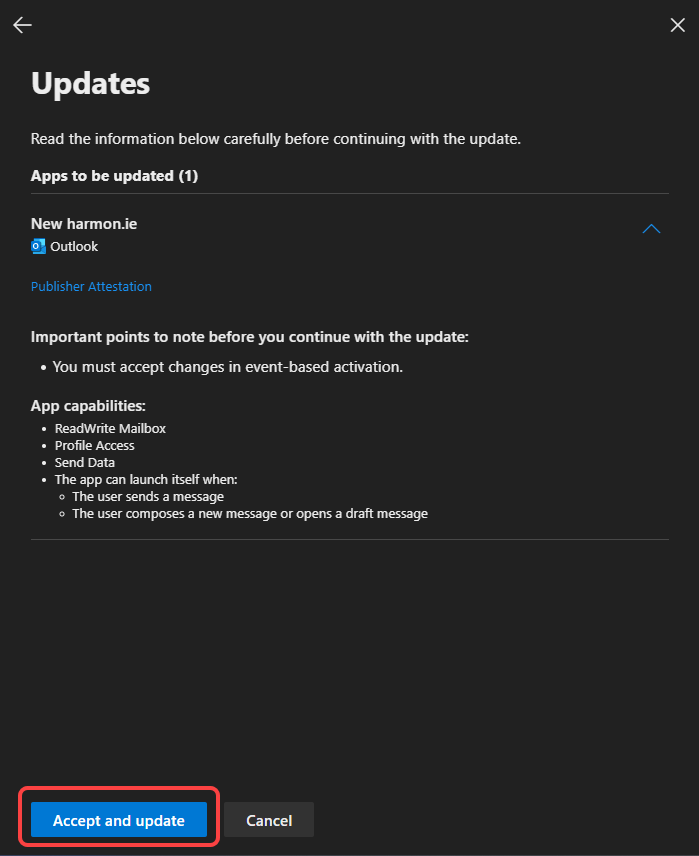
- Click Accept and update.
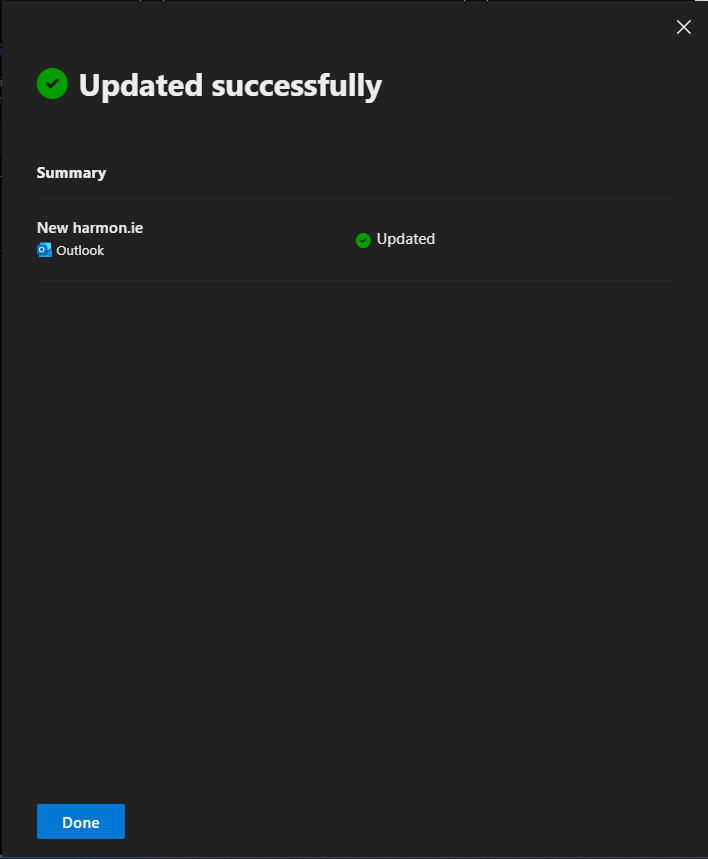
- When the update completes, click Done.
To learn more, read Update existing add-ins to include event-based activation.
How to approve new required permissions?
When a new permission is required by a harmon.ie feature, you’ll receive a new consent link. To grant consent:
- Click the consent link.
- Sign in with Global Admin credentials.
- Check the box labeled Consent on behalf of your organization and click Accept.
To learn more, read harmon.ie App Consent and Required Permissions.
New harmon.ie desktop app
Microsoft Store deployment
Apps deployed from the Microsoft Store via Intune update automatically, as long as the app remains assigned in Intune. No admin action is required.
MSI package deployment
To deploy a new version, update the existing Line-of-business app in Intune with the new package:
- Download the new MSI from the harmon.ie Customer Portal.
- Sign in to the Microsoft Intune admin center.
- Go to Apps > All apps, and select New harmon.ie from the list.
- Under Manage, select Properties.
- Next to App information, click Edit.
- Click the listed file next to Select file to update.
- Browse to the new
.msifile and click Open. The app information updates automatically from the package. - Verify that App version reflects the new version, then click Review + save > Save.
Read Add a Windows Line-of-Business App to Microsoft Intune for full details.
Read what’s new in New harmon.ie before upgrading for a summary of improvements and fixes.