New harmon.ie
 Deploy New harmon.ie: Step-by-step Admin Guide
This guide explains how to deploy New harmon.ie for a pilot group or for the whole organization. The Outlook add-in is deployed via Microsoft 365 Admin Center; the desktop app is deployed via Microsoft Intune.
New harmon.ie free trial is available for 21 days. If you’re ready to deploy harmon.ie, you’ll need to upgrade to our paid plan. Contact our sales team.
New harmon.ie is available in two editions:
- harmon.ie for Outlook: An Outlook add-in that works in Outlook for Windows (new Outlook), Outlook for Windows (classic), Outlook for Mac, and Outlook on the Web, including modern browsers such as Edge and Safari.
Available from Microsoft Marketplace, and deployed with the Microsoft 365 Admin Center. - harmon.ie Desktop app: A standalone application that provides the harmon.ie interface in a resizable window. Available for Windows.
Available from the Microsoft Store or as an .msi download, and deployed with Microsoft Intune.
You can deploy one or both components depending on your organization’s needs.
- Grant app consent.
- Deploy New harmon.ie to users:
- Configure New harmon.ie with custom options (optional).
- Keep New harmon.ie up to date.
1. Grant app consent
New harmon.ie requires consent to connect users to their Microsoft 365 locations.
To grant consent to the whole organization:
- Click the consent link.
- Sign in with Global Admin credentials.
- Check the box labeled Consent on behalf of your organization and click Accept.
For more information, read Understanding harmon.ie App Consent and Required Permissions.
2. Deploy New harmon.ie to users
A. Deploy New harmon.ie for Outlook
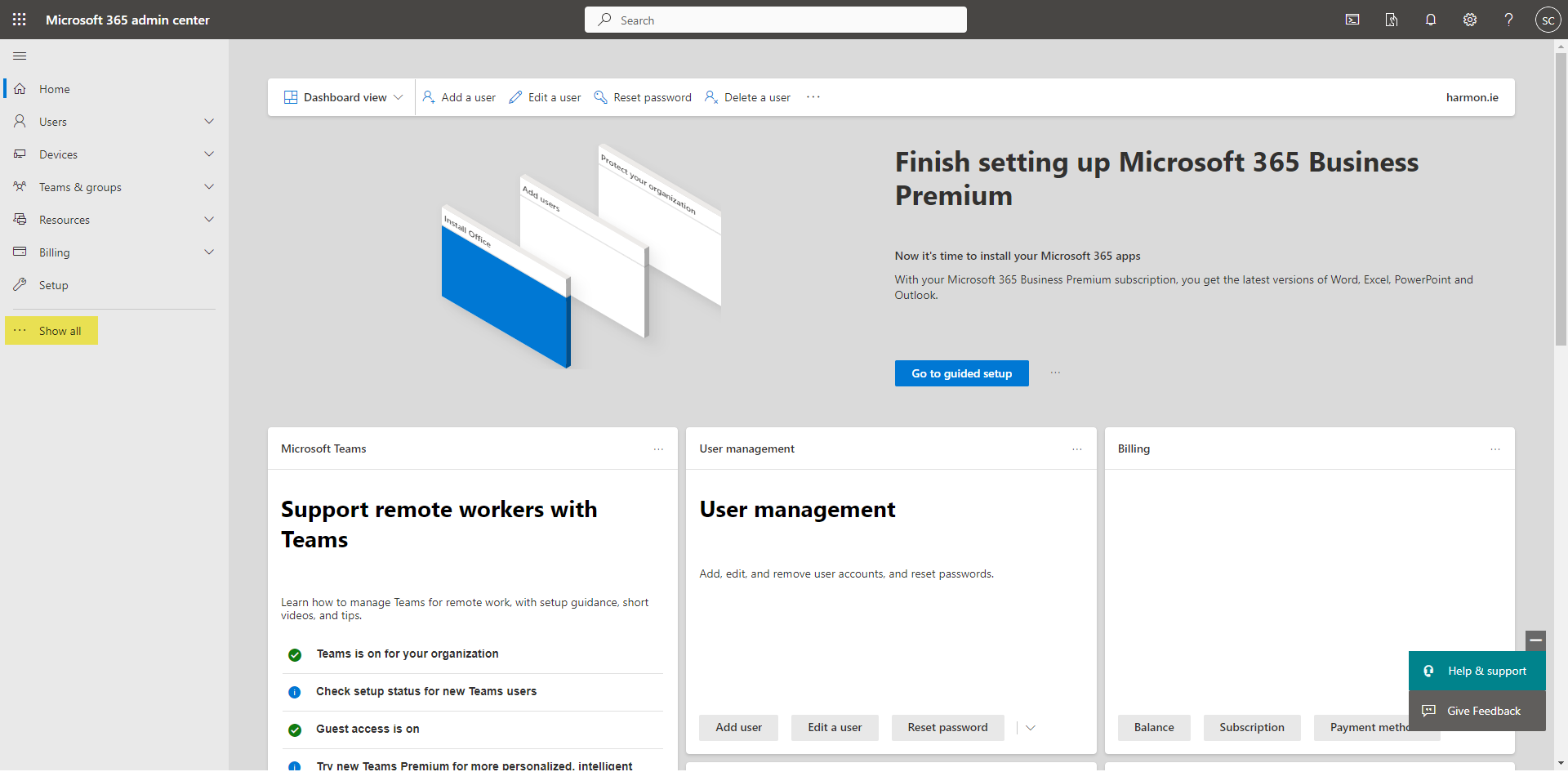
- Navigate to Microsoft 365 Admin Center.
- Click Show all.
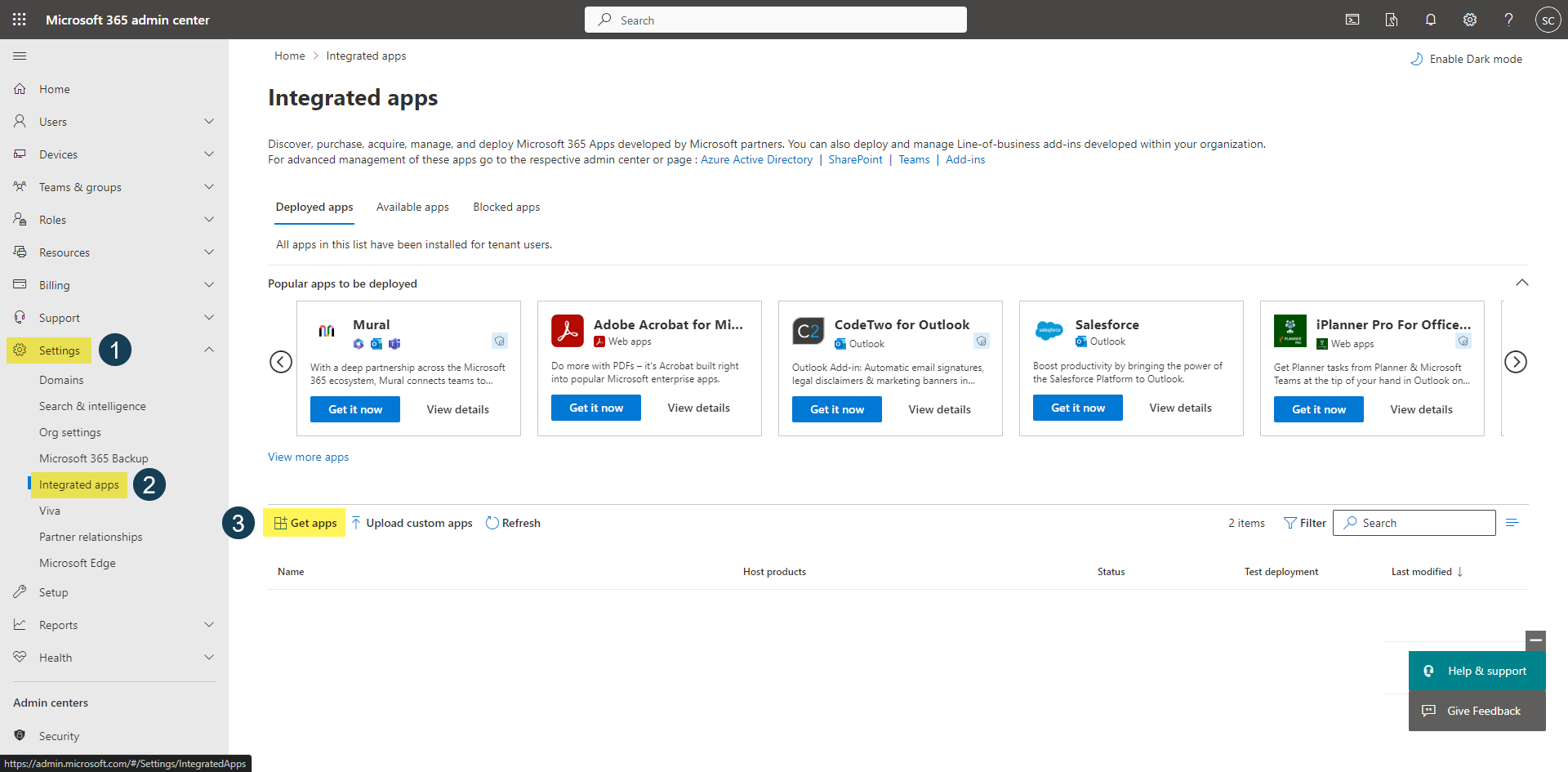
- Click Settings > Integrated apps.
- Click Get apps.
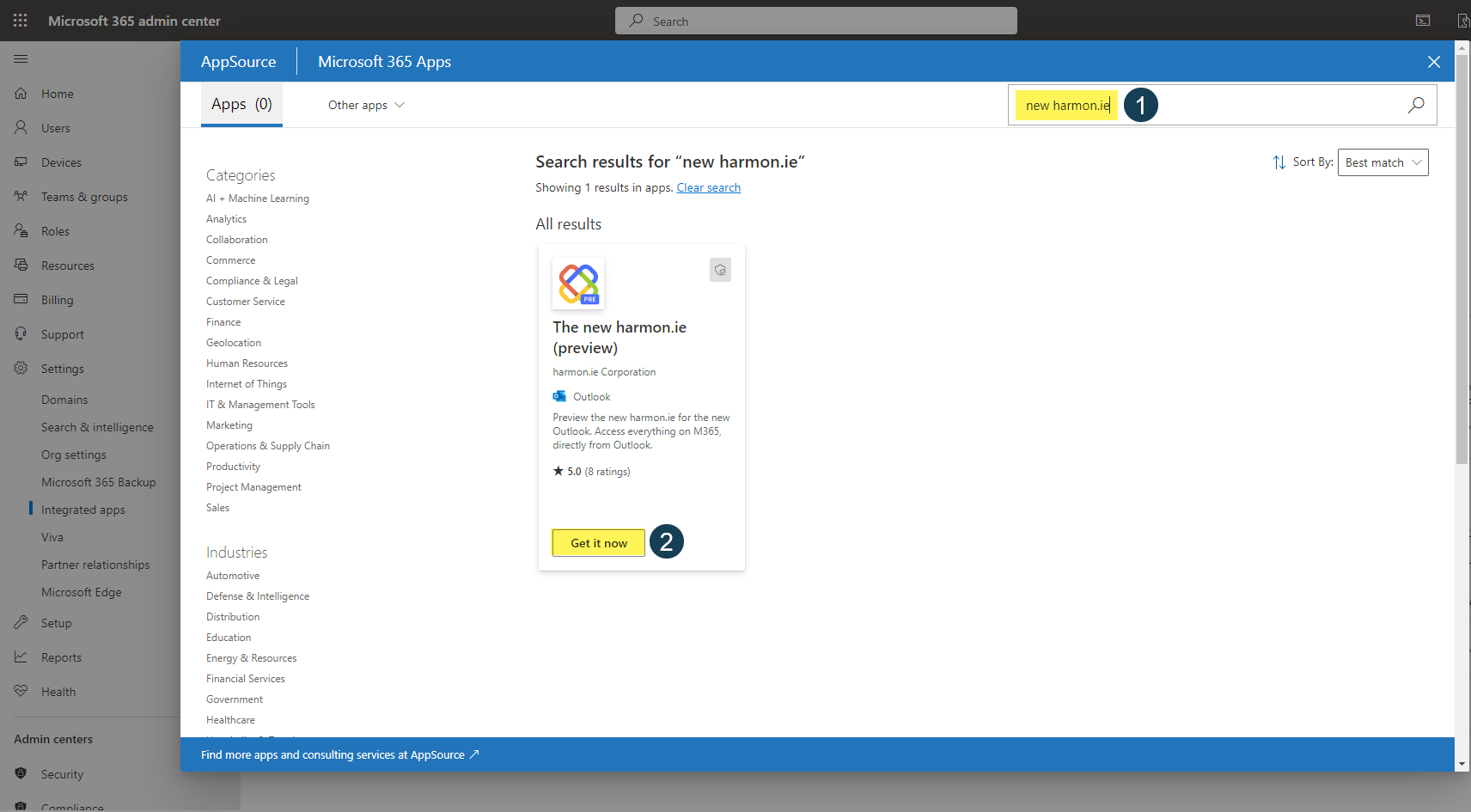
- Search for New harmon.ie.
- Click Get it now.
- In the confirmation dialog, click Get it now.
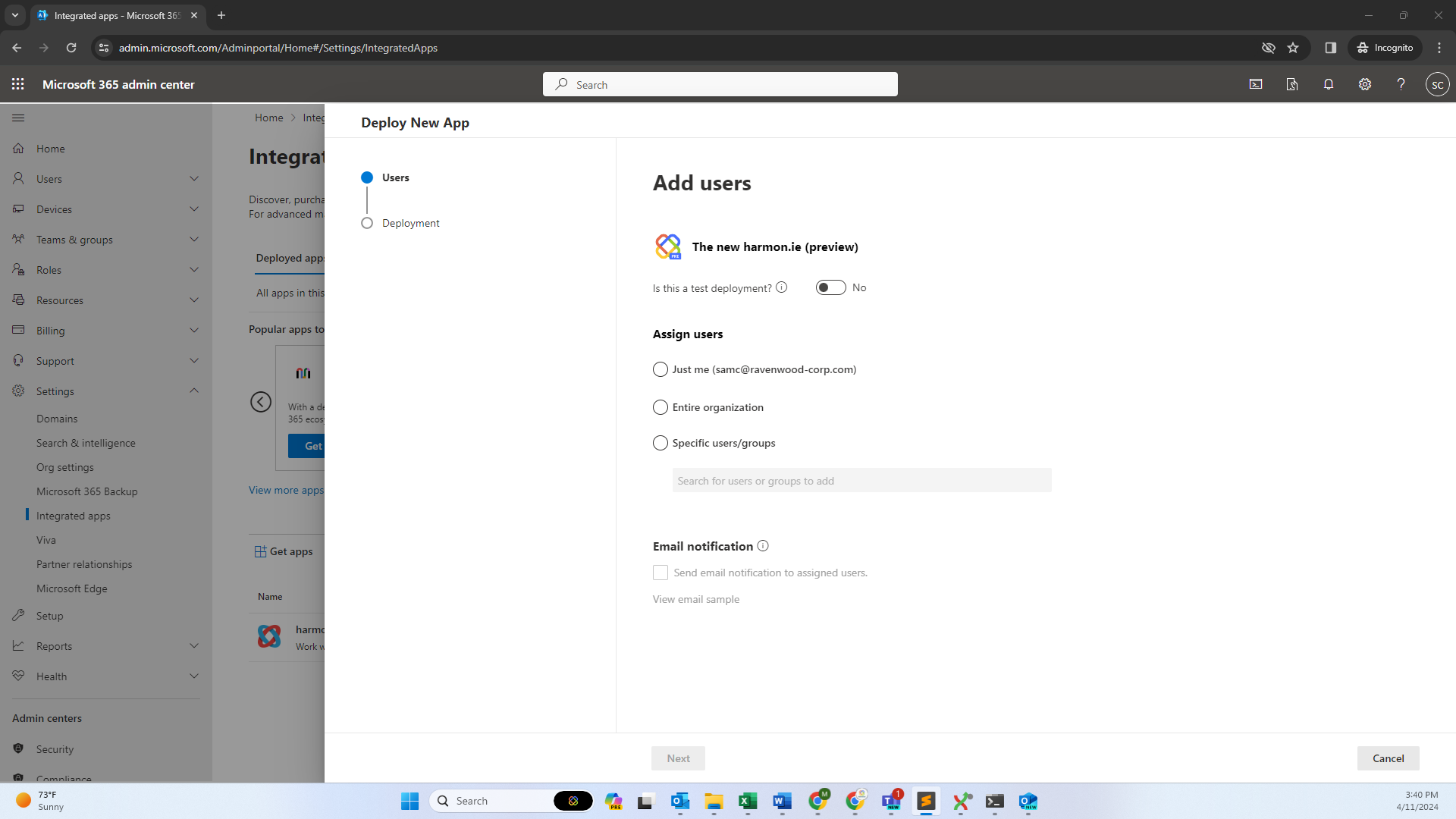
- Under Add users, select the users you want to deploy New harmon.ie to, and then click Next.
- Under Accept permissions requests, click Next > Finish deployment.
- Click Done.
Read Deploy add-ins in the Microsoft 365 Admin Center for more information.
B. Deploy the harmon.ie Desktop app
Use Microsoft Intune to deploy the New harmon.ie Desktop app to users or devices in your organization.
- Sign in to the Microsoft Intune admin center.
- Go to Apps > All apps and click Create.
- In the Select app type pane, under App type, select one of these options:
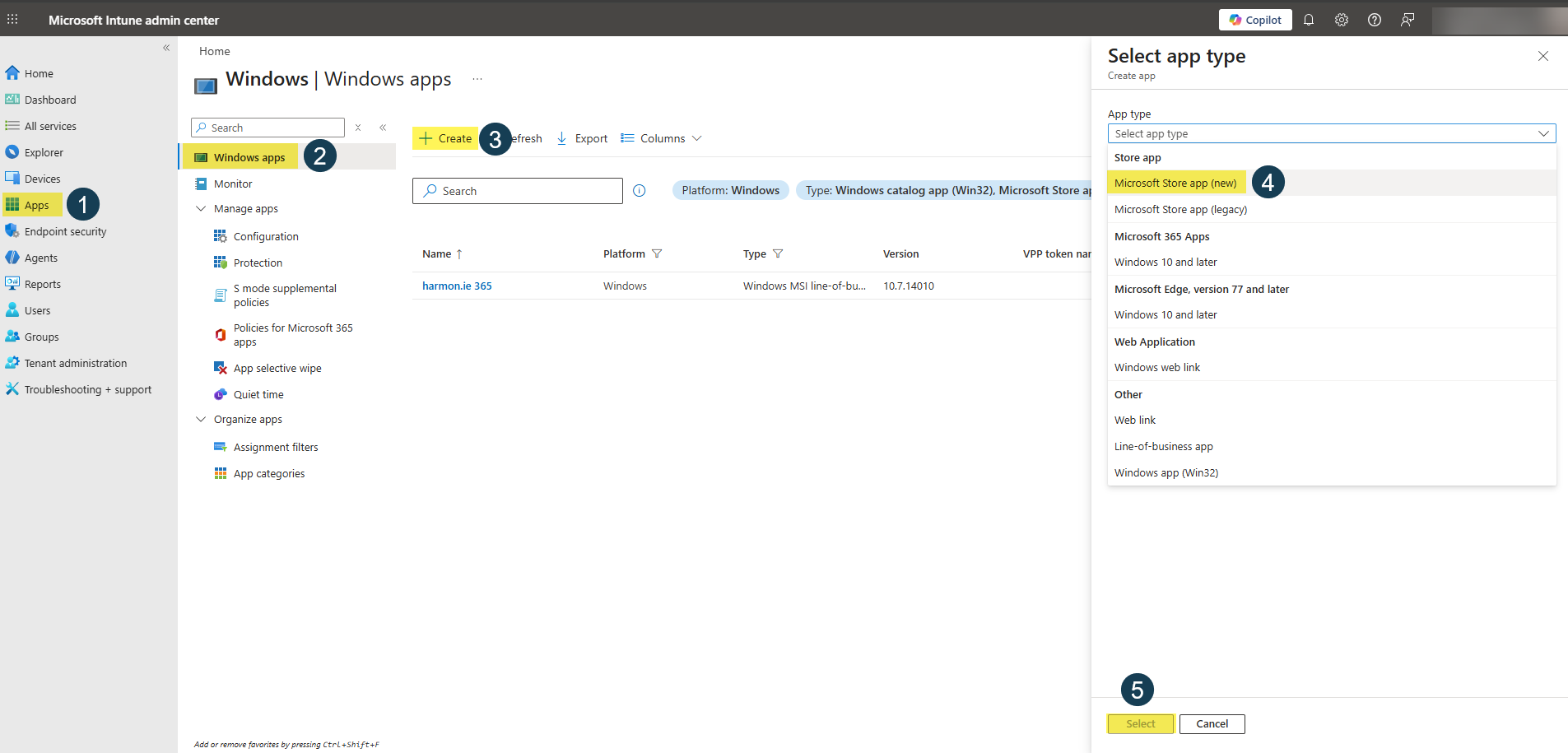
- Microsoft Store deployment:
- Select Microsoft Store app (new), and then click Select.
- In App information, click Search the Microsoft Store app.
- Search for New harmon.ie, select the New harmon.ie Desktop app from the results, and click Select.
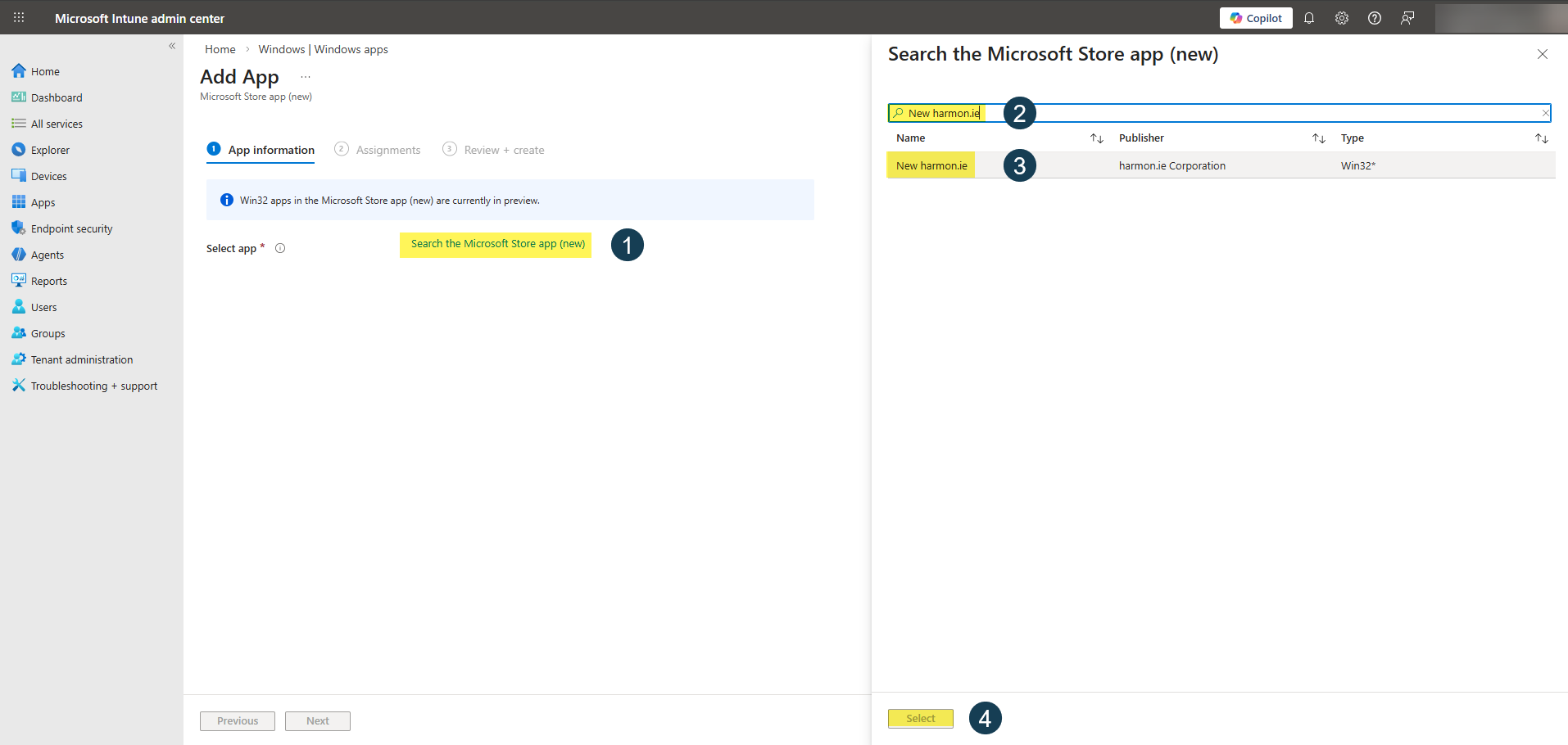
- MSI package deployment:
- Select Line-of-business app, and then click Select.
- Click Select app package file, browse to the downloaded
New harmonie.msifile, and click OK.
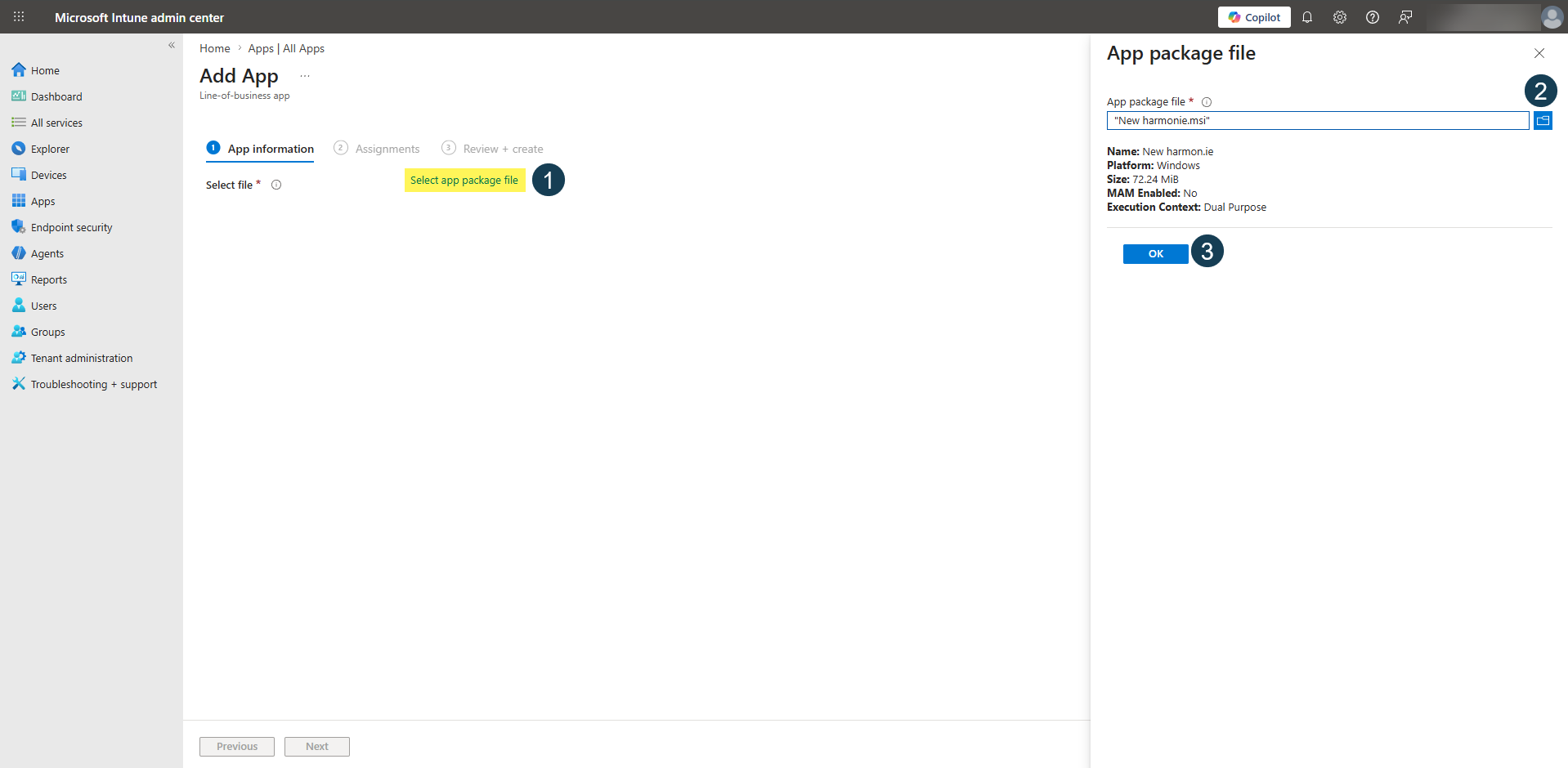
- In App information, it’s recommended to set Command-line arguments to
/quiet.
After selecting and configuring the app source, continue with the following steps for both deployment options.
- Microsoft Store deployment:
- Review App information and click Next.
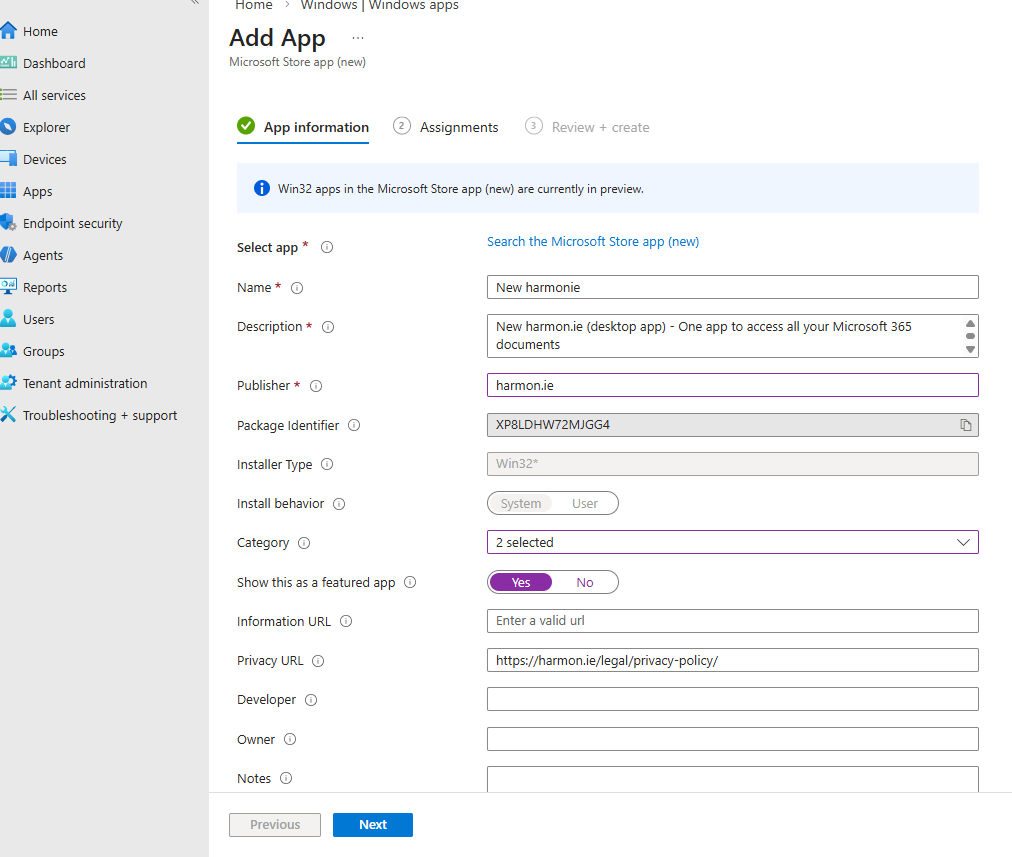
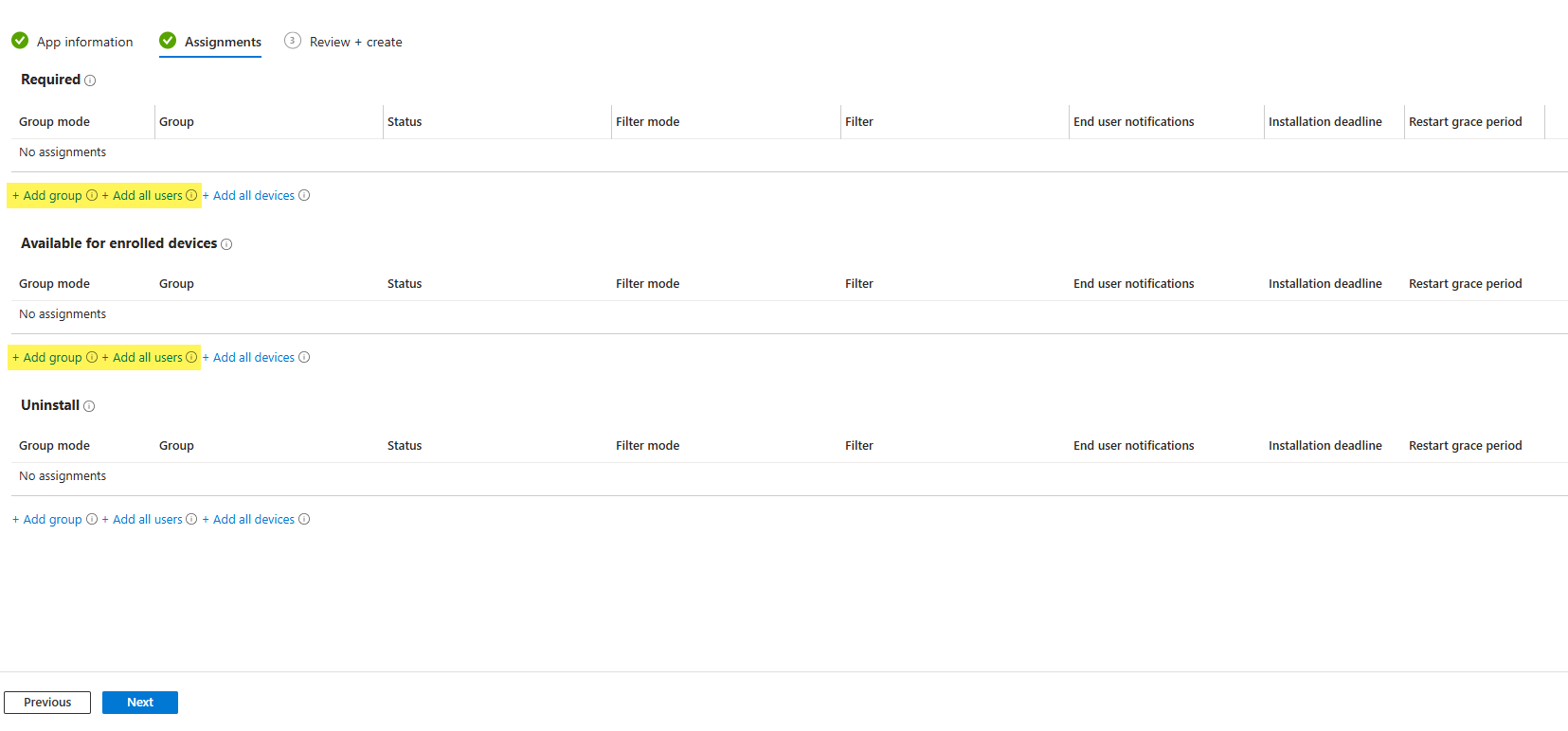
- In Assignments, choose how you want to deploy the app:
- Required – installs the app automatically for the selected users or devices.
- Available for enrolled devices – makes the app available in Company Portal for users to install themselves.
- Click Add all users or Add group, select the Microsoft Entra user or device groups that should receive the app, and configure assignment options as needed.
- Click Next, review the configuration, and then click Create.
- Monitor deployment from Apps > All apps > harmon.ie by reviewing device and user install status.
3. Configure New harmon.ie with custom options (optional)
You can centrally manage user-facing options for all users. This includes:
- Managing Microsoft 365 apps
- Defining custom email header mapping
- Configuring the file name of emails saved to Microsoft 365
- Setting other user options.
Read Centrally Configure New harmon.ie for All Users to learn how.
Central configuration is optional for general use, but required to set up email automation.
4. Keep New harmon.ie up to date
- New harmon.ie for Outlook: Updates automatically in the background. When a release requires changes to the manifest (such as new permissions or event-based features), admin approval is required before users can access the new features.
- New harmon.ie Desktop app: When deployed from the Microsoft Store, it updates automatically. When installed from the .msi package, download each new version from the harmon.ie download page and redeploy it.