

New harmon.ie is your Outlook sidebar for saving, managing, and finding email and documents in Microsoft 365, without leaving your inbox. Version 2.0 is a milestone release, led by email automation (now in beta): let harmon.ie save the right emails to Microsoft 365 for you, instead of relying on anyone to remember. It also makes everyday work smoother, with clearer navigation, adjustable text size, and smarter email header mapping for admins. Here’s what’s new.
Let harmon.ie Save the Right Emails to Microsoft 365 for You (Beta)
Manual filing is the weak link in any Microsoft 365 email management strategy: when capturing a record depends on someone remembering to save it, records slip through. Email automation, now in beta, closes that gap. You set a rule once, and harmon.ie saves the matching emails to SharePoint or Teams for you.
There are two types of rules in the first phase of the beta.
- Save conversation lets you opt a conversation into auto-save, so every new reply is captured to the same location automatically.
- Save by sender goes a step further: when harmon.ie notices you repeatedly saving emails from the same sender to the same place, it offers to create a rule that saves all of their emails for you, no need to file each one by hand.
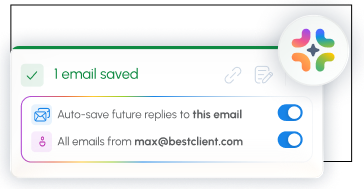
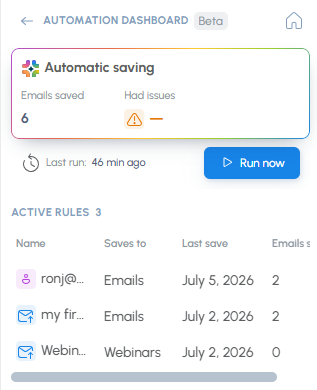
The new Automation Dashboard keeps you in control. Run a scan to save the emails that match your rules, see how many were saved and whether any had issues, and view or delete your rules whenever you like. During the first phase of the beta you start each run yourself from the dashboard; automatic background runs come in the next phase.
And with shared saves, when a colleague saves an email you both received, harmon.ie marks your copy in Outlook with a category showing that it was saved and where, so nobody files it twice. Because automation captures records consistently, it also strengthens email compliance: the emails that matter reach Microsoft 365 whether or not anyone remembers to move them, and they stay inside your own tenant the whole time.
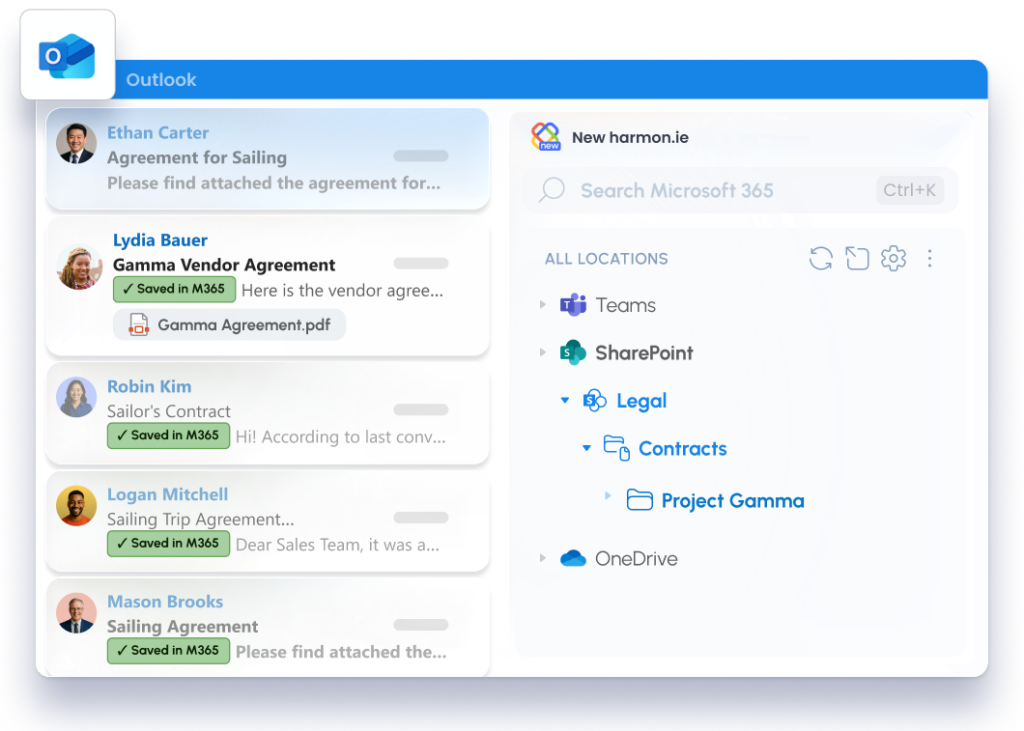
Email automation is rolling out as a beta in both the Outlook add-in and the desktop app. To try it in your organization, join the beta. Want to see it first? Register for our live webinar, Put Email Saving on Autopilot, on July 7 or 8 for a demo and a look at how to get started.
Always Know Where You Are in Microsoft 365
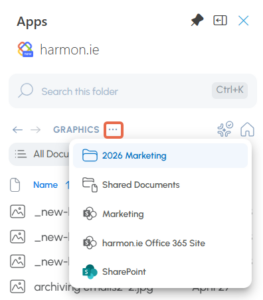
Moving between SharePoint sites, Teams, and OneDrive folders can leave you unsure where you’ve landed. In the Content view, a new navigation path shows the full route to your current location and lets you jump to any level with a click. It appears as a breadcrumb trail when the sidebar is wide and collapses into a drop-down when space is tight, so it stays usable at any width.
Back and Forward controls let you retrace your steps through recently visited locations, the same way you move through pages in a browser. Together they make managing content across SharePoint, Teams, and OneDrive quick and predictable, even when you’re working across several locations at once.
Choose What Happens When an Item Already Exists
When you save or upload something that already exists in a location, you now have a third option. Alongside Replace item and Keep both, you can select Skip item to leave the existing one untouched. It’s a small but welcome choice when you’re saving in bulk and don’t want to overwrite or duplicate what’s already there.
Set the Text Size That’s Comfortable for You
Not everyone wants the same text size, and screen sizes vary widely. New harmon.ie now lets you choose Small, Medium, or Large text in Settings, and the change applies immediately. It’s a small adjustment that makes the sidebar easier to read and work in all day.
Consistent Email Metadata, Even in New Libraries (Admin)
When harmon.ie saves an email, it maps the email’s headers to SharePoint columns so records are classified as they’re filed. harmon.ie could already build that structure automatically in libraries that weren’t set up for it, as long as you used its default email header mapping. In 2.0, it does the same for your organization’s custom mapping: harmon.ie creates the email content type and columns from your custom definitions, even in libraries that don’t already have them.
For admins, that means consistent email classification across your Microsoft 365 environment, without configuring each library by hand. You define the mapping once in your central configuration, and harmon.ie applies it wherever emails are saved. It’s the same idea behind tagging metadata as you file from Outlook, now extended so no library gets left behind.
Designed for the Way You Work in Microsoft 365
Every part of New harmon.ie 2.0 points in the same direction: keeping your email and documents where they belong in Microsoft 365, with less manual effort and less that depends on memory. Because harmon.ie works directly against your own tenant, your content never leaves Microsoft 365. It’s built for the way regulated teams actually work in Outlook, so good record-keeping happens as part of the day rather than on top of it.
Get Started with New harmon.ie 2.0
New harmon.ie 2.0 is available to all users, in both the Outlook add-in and the desktop app (version 1.2). Email automation is in beta, available at no additional charge to harmon.ie customers and to trial users.